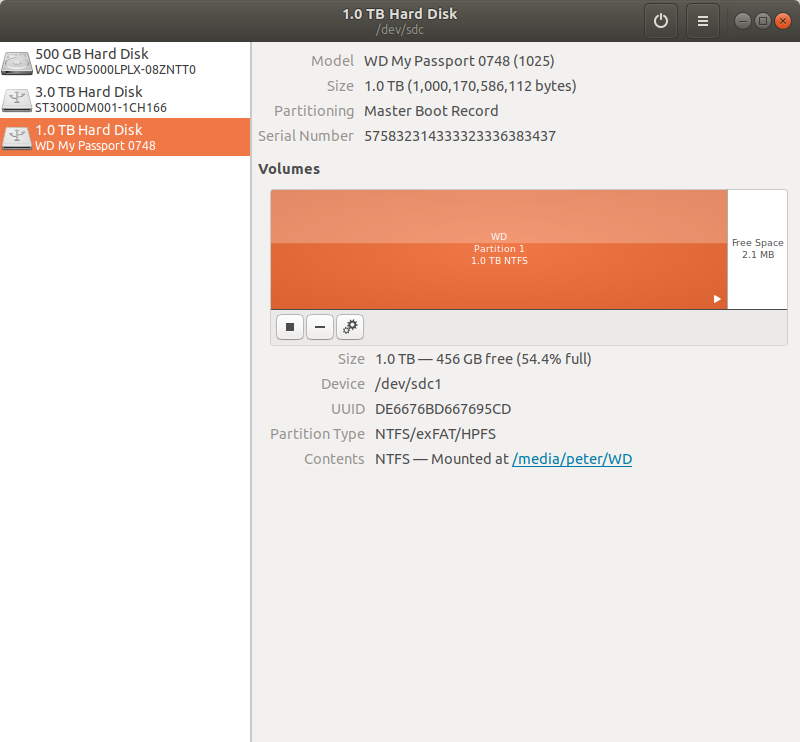
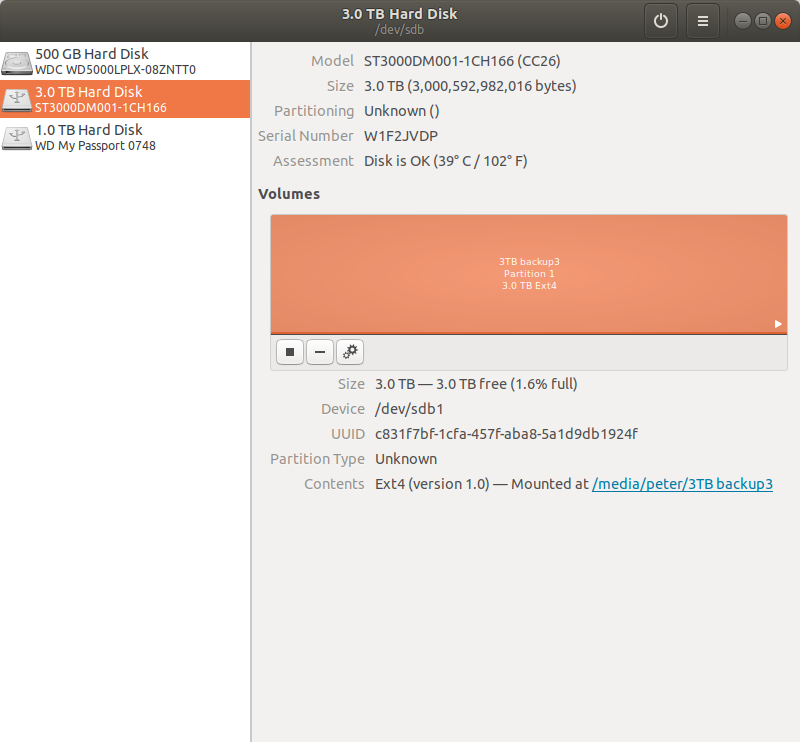
I am trying to copy one big HDD to another blank one (before reformating HDD 1 as EXT4)
Reading up, it seems that the DD command shoud do it. But I cannot seem to figure out how to make it work.
My two HDDs are labelled:
Source: /dev/sdc1
Target: /dev/sdb1
(but they also seem to be referenced without the 1” as just /dev/sdb and /dev/sdc - which reference is correct?)
Before I try copying 2TB of data I wanted to just try a single file, or a folder.
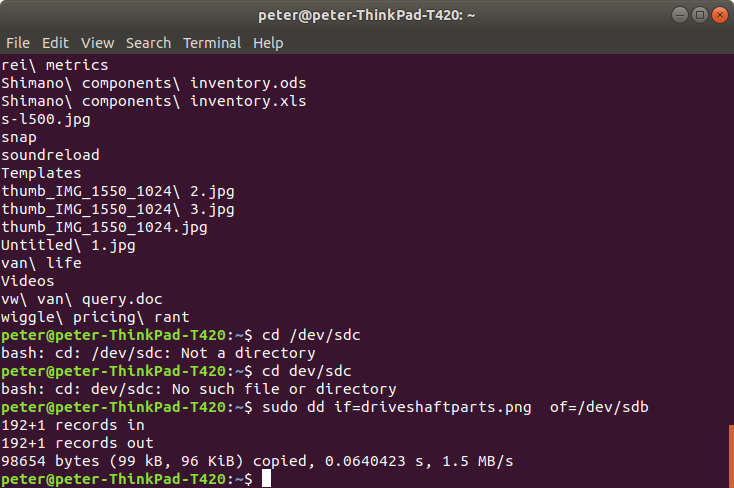
I tried the command:
sudo dd if=driveshaftparts.png of=/dev/sdb
and it seemed to show that it copied one file.
But I cannot find that copied file on the target drive.
(and I’ve read a few pages on how to use DD, but clearly I am not getting it)
dd does transfer bytes on a binary level, it is not a copy command.
Your command above writes the binary content (the picture data) of driveshaftparts.png to the raw disk device on the low level, overwriting whatever was on this disk before (including the partition table and any filesystems that existed there)… Technically you might be able to actually open /dev/sdb with gimp and see the picture data
If you want to copy whole filesystem contents, use cp or rsync on one mounted partition to the other mounted partition…
I should have been clearer about what I am trying to do.
I have a drive (called it HDD A) that is formatted as NTFS and which, when it fails (say after a power failure), often needs to be revived using ChkDsk in Windows (which sits alongside my Ubuntu but which I never use Except to use that ChkDsk)
I would like to get rid of Windows completely.
I have been advised that I should back that HDD A up and reformat it as EXT4 - which would then be compatible with Linux based disk checkers.
so the reason I am playing with DD is that I want to back up that HDD A to another empty disk, just as a precaution.
But trying GUI Copy and Paste, I was getting all sorts of errors (incompatible file names etc) and it only seemed to copy over about half of the contents of the Source drive (HDD A)
So, i looked for a more reliable copying tool and knowing that the diehards here default to using commands in Terminal, I thought that DD was the way to go.
But before using it on my actual data (HDD A) I was experimenting with a disposable drive and an empty Target drive.
so, no risk experimenting.
and that was where I could not figure out DD.
I did not see any obvious good GUI apps in Ubuntu Software (when I searched on “Copy” and “Drive” etc.)
I am not very handy at specifying file and drive “paths” or locations in Terminal
can you guide me as to what the syntax would be to use rsync to:
first copy just a single file (as an experiment) to that empty target HDD
if Driveshaftparts.png is in the current directory level….
sudo rsync driveshaftparts.png /dev/sdb
does not seem to do anything (though I do not get an error either)
and then once I figure that out, what would the syntax be to copy an entire external drive (/dev/sdc or sdc1) to another HDD?
DO NOT copy a MBR drive to gpt using dd.
You will convert your 3TB drive to 2GB as that is the max for MBR (msdos) partitioning.
If erasing the 1TB drive after copy I suggest converting drive to gpt although not absolutely required. Microsoft required Windows 8 be installer in UEFI boot mode to gpt partitioned drives. Or gpt has been the new standard since 2012. I used gpt in 2010 on old BIOS only Ubuntu only drive, so Linux has supported gpt for many years.
Not sure if clonzilla will recognized the MBR to gpt or not. I might suggest just formatting 3TB ldrive. Make it gpt & a 1TB ext4 partition using gparted. Make sure its gpt before you start partitioning. I also like to uniquely label all partitions.
and use cp -a or sudo rsync -avz.
Double check that drives are mounted consistently My external drive mounts as sdc, but after a reboot is sda, changing all other drives. Always check before running any command using sdXY notcation. I like to use lsblk -e 7 -o MODEL,NAME,FSTYPE,LABEL,MOUNTPOINT,SIZE,uuid to see partitions.
The device node /dev/sdb actually represents your physical disk device, you never write to disks on that level but want have a partition on it that contains a filesystem…
If you check your second screenshot above you will see that the disk contains a partition called /dev/sdb1 (representing the first partition, had you more they would go up in numbering… sdb2 … sdb3 …), on this partition there is an ext4 filesystem, on Linux you want to use the mount command to actually make the filesystem accessible somewhere in your filesystem tree…
Now look closer at that screenshot, there is a line that says “Contents”, apparently the kernel noticed that you plugged the disk in and did the mounting for you, in that line it tells you where you can access it…
Now currently all of the above is a bit moot since you used dd to overwrite the beginning of the disk on a low level with picture data, so unplug and re-plug the disk and go back to the disks command, see if the partition table survived (is there still an sdb1 ?) and if there is still a filesystem it recognizes, else you need to create a new partition table, a new partition and format it as ext4 filesystem…
Once you have done this, re-plug it and let the kernel automatically mount it again, find the location where you can access it (remember the Contents line) and use that location as the target for your cp or rsync commands…
The images in your original post show you have one partition on each drive, sdb has sdb1 and sdc has sdc1 so you could have created a mount point for each (mkdir /mnt/sdb1 && mkdir /mnt/sdc1 then mounted each partition to that mount point and simply copied (mount /dev/sdc1 /mnt/sdc1 && mount /dev/sdb1 /mnt/sdb1). Using the method you did with dd probably messed your partition table.
If you are copying from an ntfs filesystem to an ntfs filesystem why don’t you use windows? If you are copying TO a Linux filesystem that’s different.
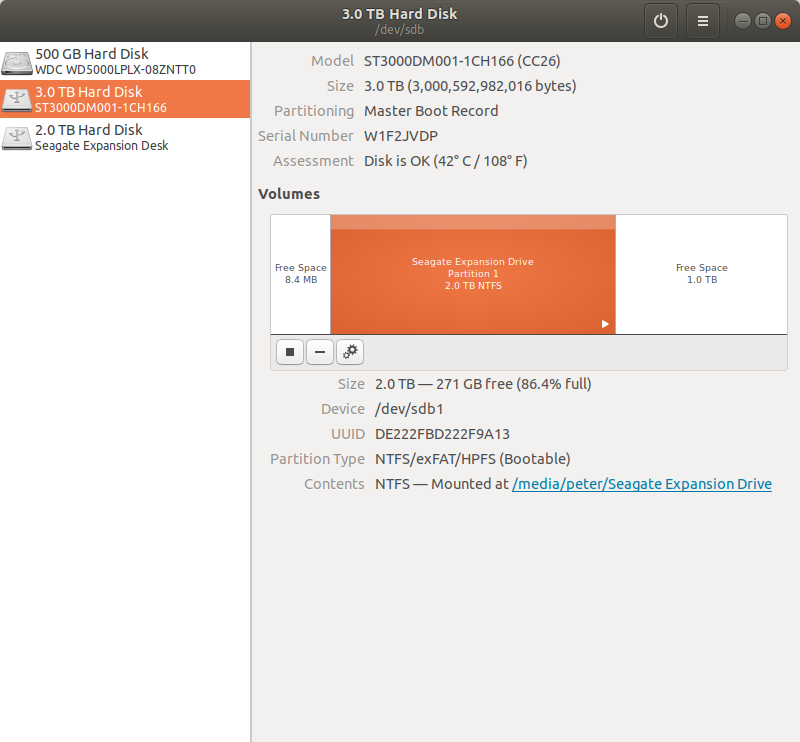
I was wondering why my 3TB drive suddenly was only showing as 2TB.
MBR = Master Boot Record?<
ahhh, yes I see now MBR versus GPT.
These 3TB drives (3 of them) I got cheap a few years ago and they have been lying around idle. So I am risking nothing (I don’t think) by playing with them.
I am currently running CloneZilla and I’ll see what the outcome is.
It might thought have repartitioned the Target drive as NTFS again, which defeats the purpose of this exercise.
I am trying to get away from Windows completely (as I never use it, am stuck in the Vista era and I might have to wipe it out one day if I had to reinstall Ubuntu - and I don’t have the install discs any longer.) and so I want to be able to reformat that NTFS drive as EXT4. But to do that I have to reformat it (I think)
and so I want to ensure that I have a sold backup before I do that.
this is just scrap data, not my operating system.
I should have been clearer about what I am trying to do.
I have a drive (called it HDD A) that is formatted as NTFS and which, when it fails (say after a power failure), often needs to be revived using ChkDsk in Windows (which sits alongside my Ubuntu but which I never use Except to use that ChkDsk)
I would like to get rid of Windows completely.
The newer NTFS driver in the Linux kernel itself (ntfs3) can be a little…iffy. This means that after a certain amount of time and mount/unmount cycles, the chances of something going wrong and spitting back the
"wrong fs type, bad option, bad superblock on /dev/sdXN, missing codepage or helper program, or other error"
error greatly increase. After Ubuntu caught up to/enabled that newer driver in the kernel builds (in 24.04), I was encountering unclean NTFS partition issues regularly, nearly every couple weeks. It was also causing responsiveness issues mounting NTFS-formatted USB flash drives. Power outages were not a factor in my case, but power outages will cause unclean dismounts.
Solving it is basically a matter of blacklisting the kernel driver and going back to using NTFS-3G. Doing that essentially stopped the problems with it being dismounted wrong, and fixed the nonresponsiveness when trying to use flash drives.
I didn’t give instructions in the first post mostly because I was trying to give some background. Actually reverting back to NTFS-3G is a matter of doing the following:
echo ‘blacklist ntfs3’ | sudo tee /etc/modprobe.d/disable-ntfs3.conf
Reboot, and try to access the NTFS partition. It will probably fail to mount the partition, at which point you can install ntfs-3g:
sudo apt install ntfs-3g
NTFS-3G isn’t a guarantee that you’ll never have to go back into Windows and repair a partition, though. If you’re moving fully away from Windows, then copying the data on the NTFS partition over to a new ext4 partition is usually all you’d need to care about, because if you’re not using Windows at all, there’s really no need to use NTFS.
If your intent is to migrate the data from /dev/sdc1 to /dev/sdb1, then you have 2 choices:
use dd as you seem to have indicated having tried, or
use rsync, which is the tool of choice for mirroring content data, as opposed to disk blocks.
While dd is the tool of choice when talking speed, rsync is the tool of choice to ensure data integrity, because of the built-in options for different levels of verification. As a side benefit, learning about rsync offers you mastery of one of the most common tools used for backups in general.
Since you already tried dd from /dev/sdc to /dev/sdb, as others have mentionned, you may have corrupted your partition table on /dev/sdb.
So … the first thing you need to do is re-create the original layout of /dev/sdb using GParted (using GPT format) and /dev/sdb1 as ext4 for a single partition for the entire disk, IF that is what you want. Keep in mind that single-partitions for that size imply long processing times for any actions involving backups or fsck, when you can “divide and conquer” with segmented disks with function-dedicated partitions.
I’m back
well CloneZilla worked pretty well. it quietly chugged away overnight and this morning I had a nice clean looking dupicate of my 2TB drive (sdc).
However, (and maybe not suprisingly) Clonezilla replicated the NTFS formatting of my Source drive. which was not really what I was hoping for. (though Clonezilla neatly made a 2TB partition (sdb1) and left a spare 1TB unallocated partition)
So, taking a step back.
If my Source is NTFS and I want the Target to stay EXT4, how would I do That? Rsync?
If you prefer a GUI, you can install the frontend grsync from the universe repo.
One of the nice features is, after selecting your options via the GUI, it also shows the command line equivalent. File > Rsync command line
Very useful in helping to master the options