Context and Problem Description:
Tl;dr: BIOS no longer boots into Ubuntu, even though it lists the UEFI OS which should correspond to Ubuntu.
For context, after the end of Win10 support, I decided it was time to switch to Ubuntu. To make the transition easier for me, I decided on a dual-boot system, Win10 remaining on a tiny 128 GB drive, Ubuntu on a more reasonably sized one. Following this video: https://www.youtube.com/watch?v=KWVte9WGxGE, I decided on Dual Drive Method A, which means that I completely disconnected the Windows SSD when installing Ubuntu, since (as I understood it) keeping it connected would force install Grub on the Windows drive, and I seriously didn’t have any room for it. Weeks went by, I had no issues switching between the OS-s, except every time I booted into Windows, it wanted to do a disk check. So far I’ve always pressed a key to skip it but yesterday I stepped away from my computer for too long and the disk check went through, which seemed to have seriously broken something. Selecting the Ubuntu boot SSD (now named simply UEFI OS), the computer restarts. Even more bizarrely, if I try to boot from the same SSD, just not the boot partition, it boots into Windows. I’ve seen folks have similar issues, so following some advice I’d seen, I created a Boot-Repair report via the same live-USB that I used for installation: Ubuntu Pastebin
Relevant System Information:
Using a custom made PC with a Gigabyte motherboard
What I’ve Tried:
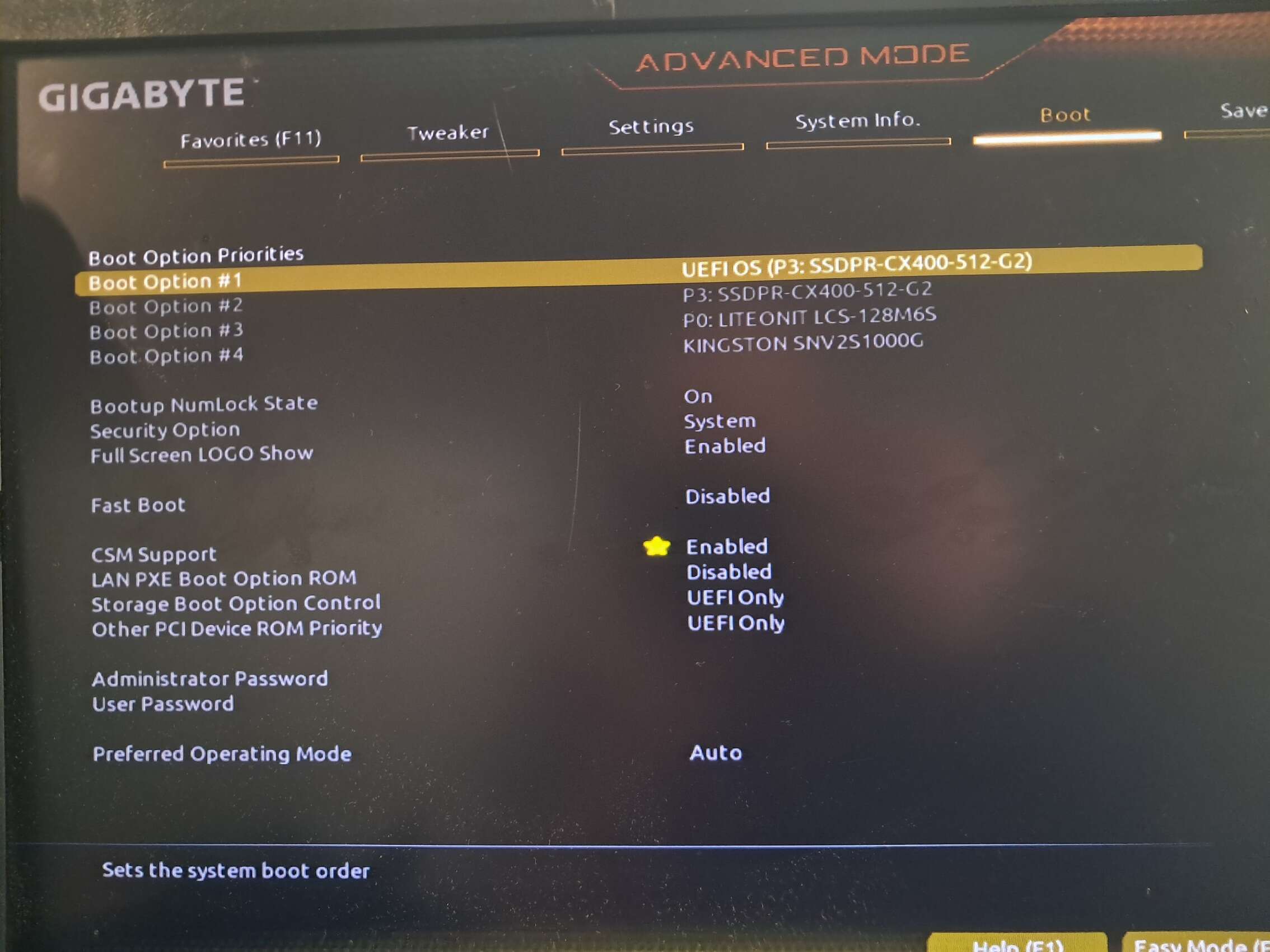
I’ve gone through my boot settings, testing all boot options, and nothing so far. Here’s a picture of the boot settings:
Boot option 1 was Ubuntu, but now restarts the boot process; option 2 somehow boots into Windows along with option 3; option 4 doesn’t have an OS on it.
I am very much new to this community and wanted to get some advice before I accept the recommended repairs and risk losing all data on my Ubuntu drive, as I can’t access it through Windows. Any help or advice is greatly appreciated!
Hi, thanks for the quick reply!
This sadly changed nothing, other than only listing and letting me boot into the P3 boot device, with the same reboot happening every time I try. I know that some people have gotten things running again by disabling secure boot, but I can only do that if CSM is disabled. I’m very hesitant when messing with BIOS and Windows boot stuff since I can’t make a proper backup of my Windows drive (I have 2 GB of free memory on that drive, which seems to be too little to create a full system image onto an external hard drive). Is disabling secure boot worth a try?
Awesome, this seemed to have worked! Now to make sure Windows isn’t doing an automatic disk check any time I decide to boot into that instead of Ubuntu
Your sda & sdb seem to be HDDs which are fine, but slower that NVMe drive you also have. The NVMe drive shows NTFS, so is it just Windows data?
If converting to Ubuntu best to convert all data to ext4 or other Linux formats. While Linuc can read & write to NTFS, it cannot fully repair ntFS. So as long as you have NTFS you need Windows.
And since NTFS is so much faster, better to have install on the NVMe drive and data which is used less on the slower HDD. Many also consider HDD better for backup.