I need to replace my current system HDD with a new one. I have created a Timeshift backup of the system (with all options included) to an external drive and have created a USB with 24.04 installed. I plan to replace the old system HDD with the new HDD, boot the USB system, and use the Timeshift installed on it to restore my backed up system on the external drive to the new drive. I am concerned about the formating of the new HDD.
My current (old) system drive has 3 partitions: (1) a Bios Boot partition, (2) an EFI partition, and (3) the filesystem partition. I plan to format the new HDD to Ext4 prior to restoring the Timeshift backup. How do I allow for the other 2 partitions (i.e., do I reserve and/or define the space during formatting)?
I suppose Timeshift should be making those backups and will restore? I’d stick with that.
You’ll need to verify that Timeshift has made a backup of those partitions too.
You can run the ‘restore’ operation anyway without destroying data, seeing as you’re using a whole new disk?
For disk formatting or general filesystems operations if you need to do things you can use parted or gparted (gui).
Edit: FYI I don’t know Timeshift application and from what I read here it appears to not be designed for this kind of operation and even though it may be possible - it could be risky.
I’d look into “cloning” your source HDD onto your new HDD, using programs such as dd, clonezilla,…
Time shift is great for restoring data. That is not what you are doing.
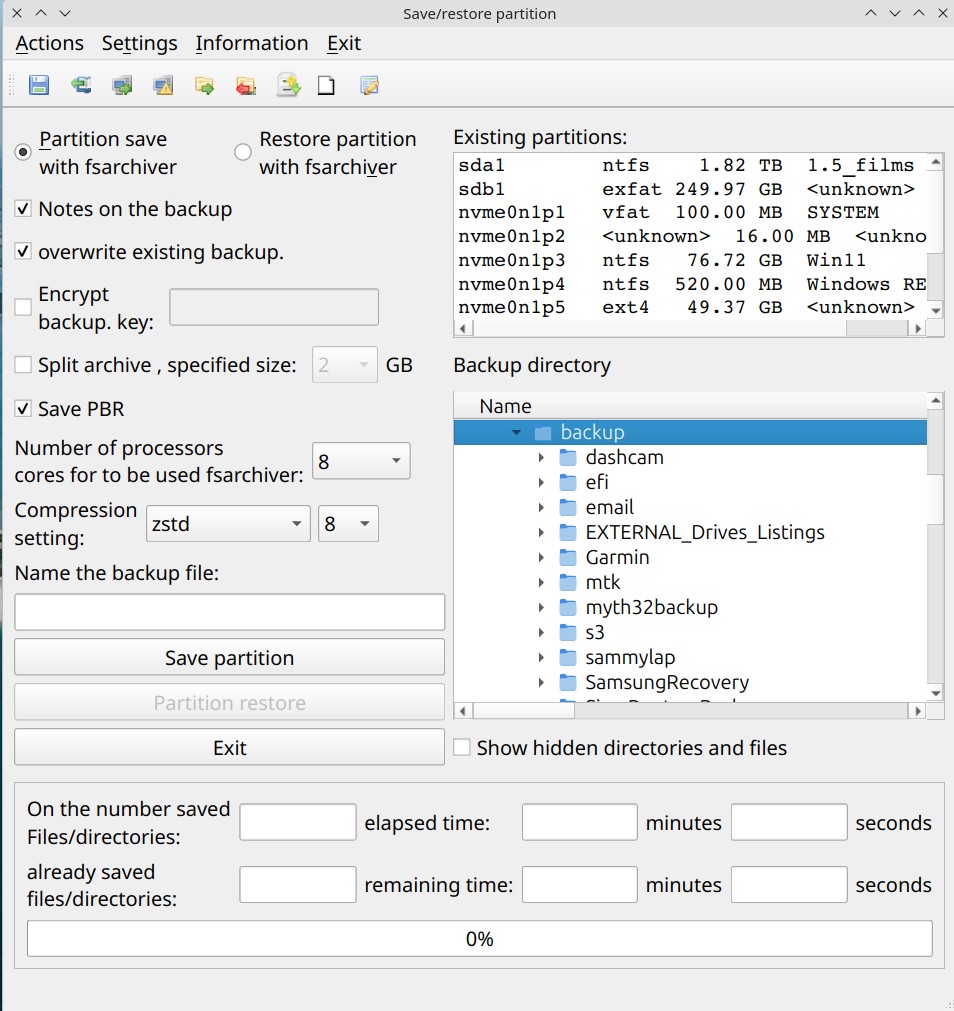
I use qt-fsarchiver, it will make a backup of your partitions and restore them to a different drive including the boot sector so you can immediately boot to the new drive, even to a smaller drive if all the data will fit.
fsarchiver is the cli version.
I think that is a holdover from a much earlier version of Ubuntu. I used to use clonzilla to do this operation, but my backup external drive shows as slightly smaller (1.8 TB) than the current filesystem drive (2 TB). Clonzilla used to fail if the two disks did not match in size. So I thought it best to avoid that issue. I think the posts from newmemory and vidtek99 give me reason for a short pause to check out their suggestions. Also, since I have not looked at Boot versus EFI, I need to see what I need to do to switch to EFI.
Thanks to all three of you for you replies. I’ll check these suggestions out. I’ll post to this thread if I have more questions.
Just a suggestion, if the disk sizes are different with the replacement slightly smaller, as you say, Clonezilla will fail. Most motherboards and laptops for the last 10 years or so will support UEFI. Have a good look at the bios options before you do anything and check what the options are on yours.
In your place I would first back up my data and home directory to removable media. If you don’t have a drive big enough to hold it then you can proceed as follows:
Download the new system you wish to install and burn an USB stick with it.
Boot from the USB stick. The install medium will then Initialise the new drive as GPT. To use UEFI you will need this to be the case.
After your new system is up and running you will be able to boot using UEFI (if you set your bios boot options correctly) from your new drive.
Then install QT-fsarchiver and transfer those directories from your old system to your new system. Yes, QT-fsarchiver will do directories too.
I am having a difficult time understanding qt-fsarchiver. I want to back up my entire Linux system. Since I want to backup the entire filesystem (i.e., / ), do I just specify sda3 (Linux is on sda. Will the restore that comes when I have the new drive installed have the appropriate partitions for Grub , etc.? Maybe that is covered by PBR?
. I want to back up my entire Linux system. Since I want to backup the entire filesystem (i.e., / )
To have a 1:1 copy on another disk: use clonezilla to clone the whole disk from old HDD to new HDD (at least same size or bigger).
You can work with an image , which is stored on a disk. Or a straight disk-to-disk copy.
edit: if you don’t want to boot into a liveUSB for clonezilla but a liveUSB ubuntu, you could do sudo lsblk like vidtek99 is saying and then use dd.
Note the name of the old drive. e.g. /dev/sdb
Note the name of the new drive. e.g. /dev/sdc
Careful! all the contents on /dev/sdc will be erased if you run the following dd command (in this example copying from sdb on to sdc):
Clonezilla would be a good option but if the HD you wish to copy to is smaller that would be a problem so you could use dd as explained but be careful selecting the correct drive and make sure you copy and save any personal data to another drive first as a backup.
You indicate in your initial post that you have a BIOS_boot partition as well as an EFI partition. If you have a standard EFI install there is purpose to the BIOS_boot partition which only exists to be used on a gpt drive to do a legacy install.
I apologize if I was vague in my posts. I do not want to install a new filesystem. I want to install the system I have on my current system HDD on a new Hdd. I am having too many errors on the current disk so it is time to replace it before it crashes. In addition, I only upgrade to the LTS versions of Ubuntu. Additionall, my data is kept on a separate HDD, plus I have a LAN and back up my data drive to both a locally attached external drive as well as an external drive attached to a separate computer in another location. I hope this will clarify any misconceptions (my bad) as to what I am trying to do.
As I mentioned before in one of my posts, I used to do this with Clonzilla. However Clonzilla began to fail due to target disk being too small although both source and target were externally, and by Linux, listed as the same size. At that point, I would swap out my system drive when I was ready to upgrade Linux by listing my installed programs as well as backing up my home directory. I should have swapped out my system drive when I upgraded to Noble but was either asleep at the wheel or thought the disk was good for another couple of years. In either case, I am now in the position of needing to replace my system disk midfstream.
If I use dd to copy my system drive to a partition on a multipartitioned drive, will that copy the Bios and EFI partitions as well as the filesystem (i.e., sda1, sda2, ada3)?
If the answer to thge above is yes and I want to change to UEFI, what are the issues, concerns?
OK now we have a better idea of your needs.
If you can’t use clonezilla because the target drive is to small (there actually is a way around this but it’s a bit complex) and it’s a cli thing only.
If you are happy with a cli solution then dd is the simplest method, but very dangerous - check and check again - there are no second chances with dd!
If you need a gui solution then QT-fsarchiver is by far the simplest. You can actually download a stand-alone version to run from a usb stick, that is what I would do for your needs.
With qt-fsarchiver you simply select the linux partition ( / ) you wish to back up and you store it as an image, at the same time save the PBR which also copies the efi and whatever boot parameters you need.
Reboot after installing the new drive and removing the old one with the live usb and run qt-fsarchiver this time restoring the image to your new drive.
I have occasionally had instances where the new system failed to boot, but the boot-repair programme sorted it out easily. boot repair