The next backup will be incremental and you will need the trailing slash after the source.
Source would be /home/user/
Test your backup by restoring a couple of small files/folders.
This will also test the use of the trailing slash.
In order that rsync copies the contents of the directory into the directory, and not the directory itself?
Ooh, simultaneous posts…
So who owes who a beer? 
I’ve just finished a Hobgoblin Original IPA but always ready for a top-up 
Did you test your restore?
1 Like
Am looking into that now… along with particulars on what partitions are actually needed/wise, at:
In your situation, I wouldn’t worry about partitions at the moment.
When reinstalling, just let the installer create the two essential partitions:-
- ESP
- System (root) including user directories
1 Like
Continuing to consider “what to backup”, the / (root) directory is going to be setup by the newly installed OS. I just jumped through a number of hoops getting devices properly mounted to /mnt and /media enabling working symlinks.
Does it make any sense to backup the /mnt and /media information, or will the newly installed OS do that automatically?
or… will that attempt to copy all the resources assigned at /mnt and /media?
It depends upon what you are mounting and symlinking.
The old partitions won’t need to be mounted nor linked, as they won’t exist anymore. You knew that already.
Other storage devices, both constant and transient, should be mounted automatically by the desktop and show up automatically in your shortcut bar/dock and your File Manager. Most users should not need to mount, fstab, symlink, or anything else.
I think we might need more information about that element of your setup.
you normally don’t as they are meant for mounting partitions not native to the root partition (media is where the system will mount removable drives), unless you decided to put something in there that is outside of mounting partitions.
Also, I’m assuming you wanted a separation of your home partition and root partition, hence why you split it? If so, I suggest using Btrfs. However, you should use Kubuntu or Lubuntu since they’re on Calamares, and Ubuntu’s installer doesn’t create subvolumes.
Here’s mine:
> cat /etc/fstab
# /etc/fstab: static file system information.
#
# Use 'blkid' to print the universally unique identifier for a device; this may
# be used with UUID= as a more robust way to name devices that works even if
# disks are added and removed. See fstab(5).
#
# <file system>             <mount point>  <type>  <options>  <dump>  <pass>
UUID=696E-D241                            /boot/efi      vfat    defaults   0 2
UUID=5478d0cc-e982-4347-a7e1-040d1c432850 /                     btrfs   subvol=@,space_cache=v2,compress=zstd:3,defaults        0 1
UUID=5478d0cc-e982-4347-a7e1-040d1c432850 /home                 btrfs   subvol=@home,space_cache=v2,compress=zstd:3,defaults    0 1
UUID=5478d0cc-e982-4347-a7e1-040d1c432850 /snap                 btrfs   subvol=@snap,space_cache=v2,compress=zstd:3,defaults            0 0
UUID=5478d0cc-e982-4347-a7e1-040d1c432850 /var                  btrfs   subvol=@var,space_cache=v2,compress=zstd:3,defaults     0 0
UUID=5478d0cc-e982-4347-a7e1-040d1c432850 /var/log              btrfs   subvol=@logs,space_cache=v2,compress=zstd:3,defaults            0 0
UUID=5478d0cc-e982-4347-a7e1-040d1c432850 /swap                 btrfs   subvol=@swap,space_cache=v2,compress=zstd:3,defaults            0 0
UUID=5478d0cc-e982-4347-a7e1-040d1c432850 /.snapshots           btrfs   subvol=@snapshots,space_cache=v2,compress=zstd:3,defaults       0 0
UUID=5478d0cc-e982-4347-a7e1-040d1c432850 /var/tmp              btrfs   subvol=@tmp,space_cache=v2,compress=zstd:3,defaults     0 0
/swap/swapfile                  none            swap    defaults                        0 0
tmpfs                           /tmp            tmpfs   defaults,noatime,mode=1777      0 0
The default would be the ones on /, /home & /swap. swapfile gets created inside /swap, after verifying with an Kubuntu 24.04 installation I worked on at a computer at work.
I decided to create the extra subvolumes (@snap, @var, @snapshots) on my system, which puts my Snaps and Flatpaks on separate subvolumes and doesn’t get snapshot and the snapshots themselves would be smaller (inspired by this).
If you aren’t sure, don’t bother setting up extra subvolumes. You can do this much later on when you’re used to it.
@ian-weisser , as long as you’re willing to take the time, analyze, and comment, here’s some visual info on what devices are currently mounted, and what symlinks we got working in the previous conversation (which also had underlying problems to address prior to addressing the question at hand)
I believe the ‘lsblk’ command with options addresses most of your inquiry:
$ lsblk -e 7 -o NAME,UUID,LABEL,FSTYPE,PATH,MOUNTPOINT
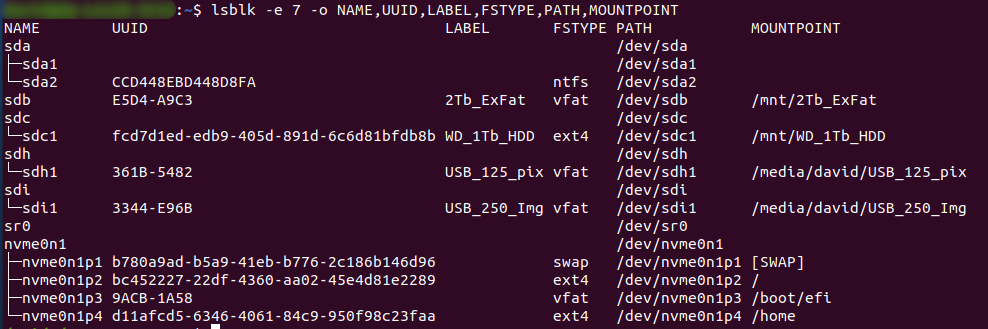
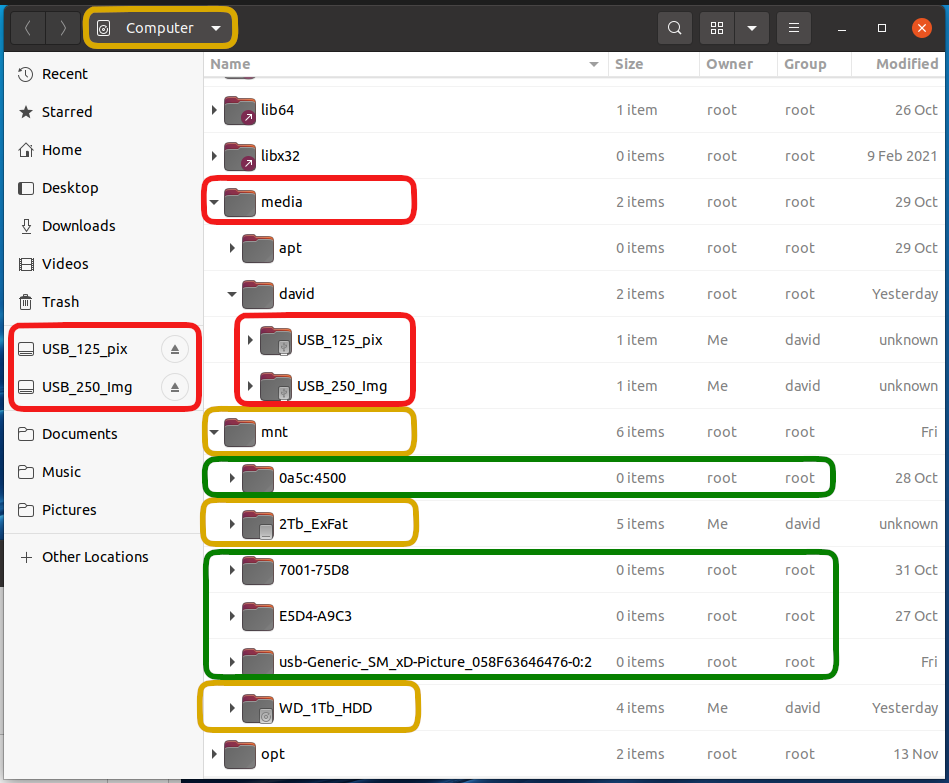
For those that follow, that looks like this in the Files app, where:
gold: system disk and mounted hardware devices
red: USB devices mounted at startup
green: USB devices “hanging on” which I expect a reinstall to dump/correct
these folders (green) are “empty” when opened / that USB media not connected
The symlink items addressed and corrected earlier in another “how do I fix this mess”, are presently mounting and available at startup (with one minor issue, targeted for another topic):
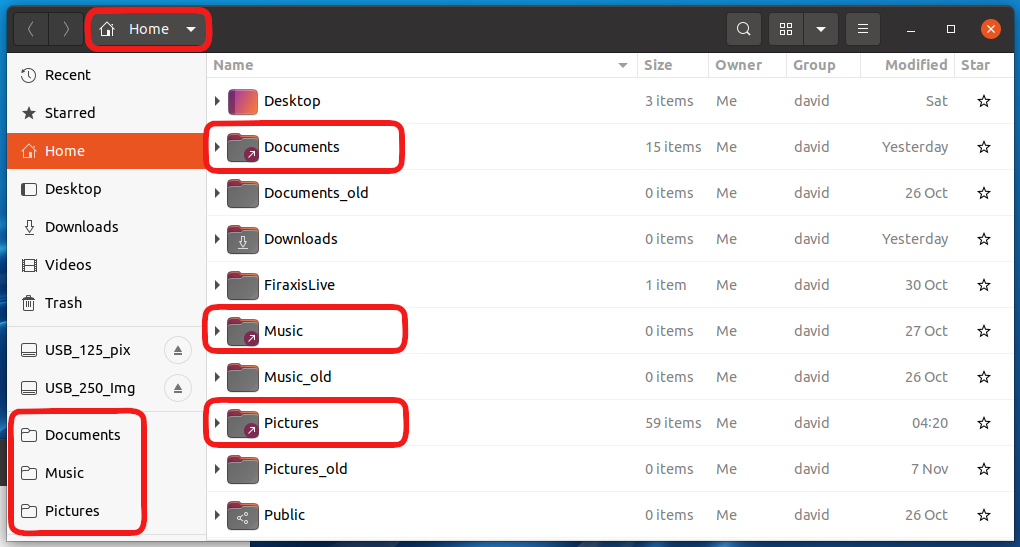
Having given it some thought, I expect the symlinks at /home and /home/david/Desktop to be captured by my backup copy of the /home directory… I question whether they will continue to work after reinstall of the OS and copying /home into the new /home directory created by the OS install. Although, given the hoops jumped through to get them working, I’m less concerned that I can address a solution or even remake them as I’ve been down that road twice before at this point.
Without any additional recommendations for “what needs done before you try a reinstall”, I believe I have my data backed up and I’m set to reinstall Ubuntu (20.04 presently, v24 on the USB thumb drive).
I’ll look forward to any guidance you good folks have after I get some breakfast. Thank God for coffee… One of His best ideas by far… right behind beautiful women and “go replenish the Earth”.
Ah, so you have multiple storage devices that need to be mounted at startup, regardless of any reinstall or repartitioning of the system.
The usual way is to record each storage device, and the intended mount point, in /etc/fstab. Then include that file among your backups.
- The fstab file is strong old magic: It’s unforgiving of typos, and takes some learning to get right, but it’s solid and reliable. No mucking about with symlinks at all.
Your symlinks won’t survive a reinstall, and won’t work after a backup/restore. You will need to re-create each link.
-
I keep notes on exactly what to re-create in case of reinstall. The exact commands, so I don’t need to re-learn them on a bad day.
-
There is nothing “wrong” with using symlinks instead of fstab. It’s a bit initially confusing to the rest of us because it’s non-standard, but that’s not important. It works, and YOU understand it, and that’s what is important.
Also, within Disks (gnome-disk-utility), there are GUI options to edit Mount Options
e.g. Mount at system start-up (among others)
2 Likes
Okay, so the last bit of backup is a copy of the /etc/fstab file before the reinstall just in case we would need to express in the new fstab file established with reinstall what is working presently… Do I have a grasp on that idea?
Here’s what I used, for those that follow:
$ rsync -a -P /etc/fstab /mnt/[backup device title]/[dir name]/[dir name]
syntax: [rsync command] [-a -P options] [fstab source path] [backup target path]
-a for “archive” with a nice list of inclusions, and -P for progress indicator (%, time, etc)
Here’s what it looks like in the Files GUI:

(for those who follow) …where [system_m2_partitions_bak] is a directory on a HDD I used for backup data, the [nvme01p2_root] is another directory named for the device and partition (p2) the contents were routed from (/etc/fstab), and a renamed fstab file so I know where it came from and what version of Ubuntu/Linux it was written under.
I think I’m ready to start that reinstall journey… Anyone see a reason I shouldn’t dive in?
Yes, I think the Disks GUI is how @halogen2 coached me through solving the last problem involving properly mounted devices and media, HERE.
Replying from my browser on my phone…
Trying to access BIOS to ensure the boot order would look at my USB drive for reinstall, the BIOS interface froze.
Upon reboot I am stuck on the POST BIOS access screen and can’t access BIOS, neither F2 or DEL work, nor will the computer start Ubuntu/Linux.
stuck.
Currently on tablet… looking at BIOS hard reset procedure for my motherboard. Clearing the CMOS memory, resetting the BIOS back to factory setting, updating the BIOS to current version once able to access BIOS.
Basically rebuilding the system…
If that doesn’t sound right, chime in… been pretty quiet in here since I last posted.
BIOS problems are rare. In 20 years of working with Ubuntu, the only BIOS problem I encountered turned out to be self-inflicted. Had I left it alone, it would have worked.
One assumes that your various storage devices are detected by BIOS?
It should be able to list what it detects.
On some hardware, an Ubuntu LiveUSB may be detected on some USB ports, but not on others.
Since you installed once already, you know which USB port worked then.
I’ll concur my experience have been pretty much the same with multiple OS’s.
Ok now to go back to lurking.
Rare, self-inflicted, or in-consequential to this conversation or not, a failure to boot or load the BIOS is where I am.
I found a failure to boot and load “BIOS Hard Reset” solution at Tom’s Hardware website; the problem sounding familiar. Having a better idea of what to look for, I went to my motherboard manufacturer’s website (ASUS), searched their FAQ and found general instructions which seemed to match, then downloaded the manual for the motherboard and found the specific instructions for resetting the CMOS for my particular motherboard.
While the CMOS reset, a clearing of the real time clock (CLRTC), is accomplished by reset button (not my motherboard), a jumper pin short circuit, and/or removal of the CMOS battery (2032 my sys), I thought i’d replace the battery while I’m at it.
The motherboard, housing a Pentium i7 series at 4.0+ Ghz, while over ten years old, has run well and serves the purpose at present. If I can get this system running again through such measures, I’ll be satisfied with it for the present time. I think replacing the battery after ten years might be good additional insurance if I can get the system back to running in reliable fashion.
Yesterday, getting to the point of being plenty disgusted with where this project has landed, I took some time away from beating my head against the brick wall. I feel less like setting fire to whole thing this morning and will resume pursuit of solutions.