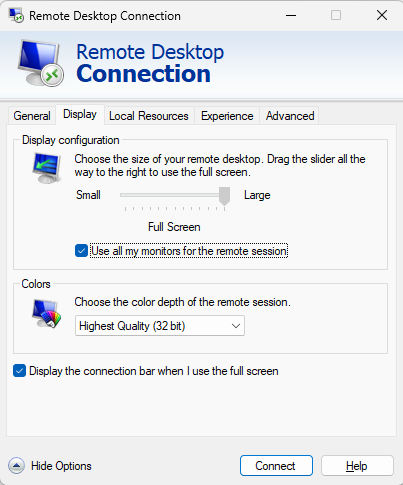
When connecting to the Ubuntu notebook using Remote Desktop on a Windows host with multiple monitors the session is not using all monitors as expected.
I’m not sure if I get you right: You want to connect to a notebook with one display (running Ubuntu) using a Remote Desktop Connection on a Windows machine with multiple monitors. You try to ‘expand’ the single monitor of the notebook using the mentioned option Use all my monitors …
If this is correct I think this won’t work. As far as I know the option Use all my monitors … can only use as many monitors as the client machine you’re connecting to has set up.
Currently this is my setup when both PCs are running Windows, I can use my two monitors during a Remote Desktop session connected to a notebook with only its built in display.
Since I am new to Ubuntu, I was considering that maybe there were a tweak or configuration that could make it work the same way.
I guess the remote desktop session between two windows machines completely takes over the client session - the local display and input gets blocked (except a login option).
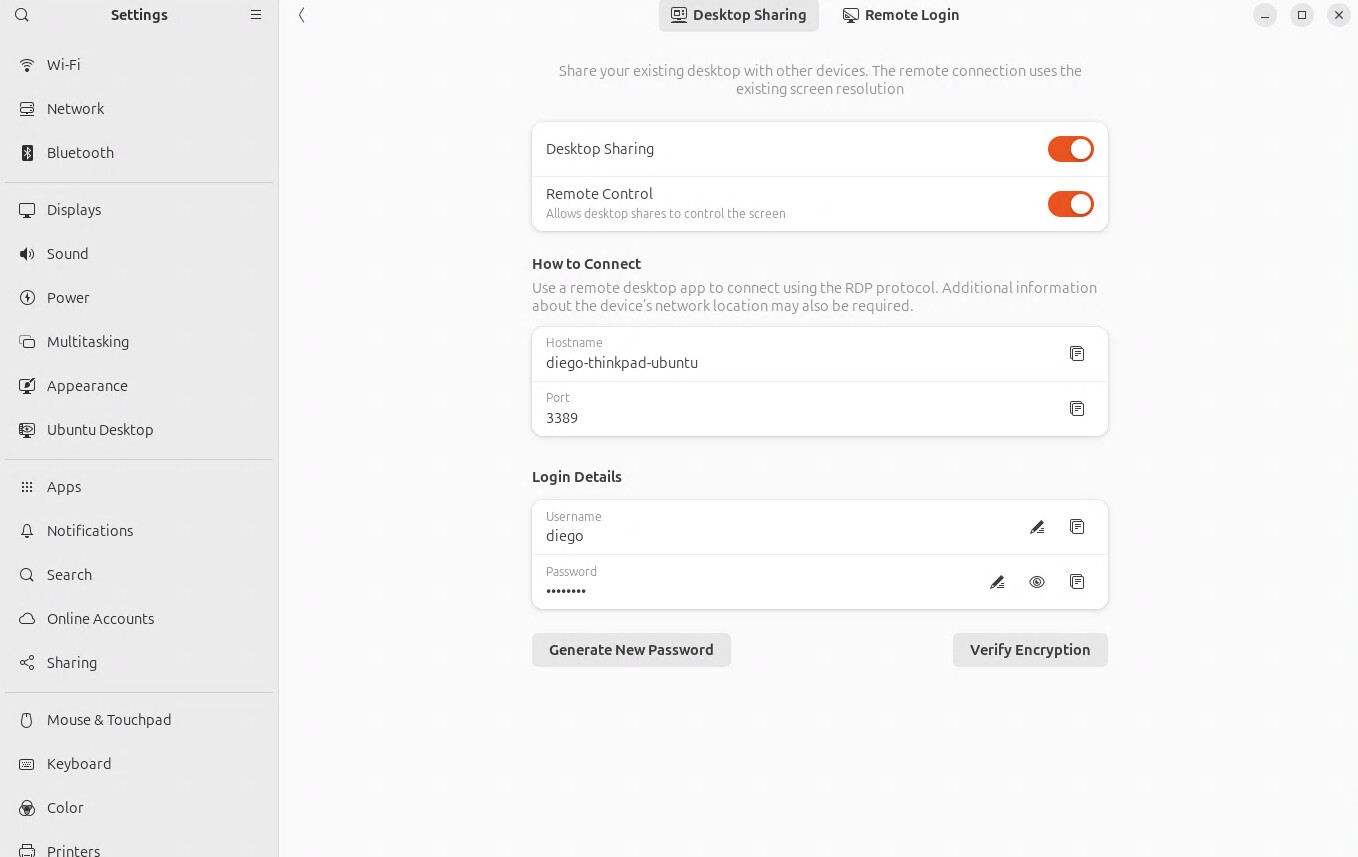
But currently with Ubuntu you are sharing the desktop - not taking over the session. As stated in your screenshot: ‘Share your existing desktop with other devices. The remote connection uses the existing screen resolution.’
Maybe you can try Remote Login (see your screenshot) instead. Perhaps you can change the screen setup and/or screen resolution for such a remote session but I do not know. Maybe somebody else can help.