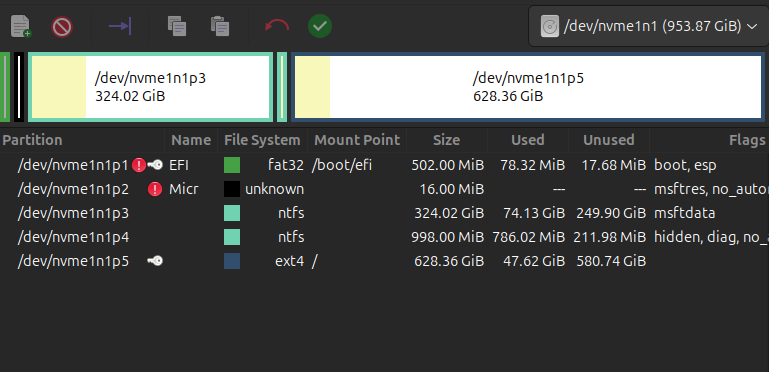
I have a dual-boot laptop with Ubuntu (latest) and Windows 11 with two SSD’s. Unfortunately, it came with a measly 110mb EFI partition so I am unable to update the firmware from within Ubuntu. I’ve tried a couple of times to expand the primary EFI partition a couple of different times and have failed miserably. I’ve read that it is possible to have multiple EFI partitions on different disks and one option would be to move my Ubuntu install completely to the second disk. Does anyone know of any good end-to-end tutorials for doing something like this? Here’s my current partitioning, which is clearly not optimal:
EFI partition does not need to be the 1st partition of the disk, so you may create a new EFI partition at end of the second disk and use it.
search google for ‘move efi partition’ for help.
This is the better option
Backup your Ubuntu personal data
Disconnect, de-activate, isolate via UEFI settings or physically remove existing Windows OS drive so that only the target drive is accessible
Boot into a “Try Ubuntu” live session and check that you are in UEFI mode
Open a terminal and enter:- [ -d /sys/firmware/efi ] && echo "UEFI" || echo "Legacy"
GPT is default in 24.04.2 installer
Otherwise, create GPT on your target disk using gparted
Open gparted > Device > Create Partition Table > Select gpt
The installer will create an EFI partition automagically
Boot loader on target disk
Boot each system independently via UEFI boot screen (ideal not cumbersome)
Boot priority can be controlled by UEFI
Each OS should be installed in UEFI mode with GPT
Each drive should have an EFI partition
Each drive should have boot manager (Windows Boot Manager and Grub for Ubuntu)
De-activate, disconnect, isolate or physically remove one drive so that you can check if the other boots independently (and vice versa)
After you are happy that both disks boot and function independently, restore your Ubuntu data.
Don’t forget to remove the Ubuntu partition from your Windows disk
Also, grub can be edited to make choosing the OS a little easier.
If you create a new ESP, you have to update fstab with new ESP’s UUID and totally reinstall grub. If editing existing partitions, you have to use live installer to change partitions. You then can use Boot-Repair or full chroot to edit fstab & reinstall grub.
Be sure to have good backups before any changes.
After creating ESP, you may be able to boot into install still using Windows ESP’s version, edit fstab & do a new install of grub, not update. Keep live installer in case grub install has issues.
sudo grub-install # uses many defaults and must have correct UUID in fstab.
@corradoventu - I really want to keep one EFI partition and use Grub for booting, rather than splitting things up. I took a couple of runs at that today, but I may have to revert to my backups yet. Here’s what I did:
Shrunk my ext4 partition at the end of the disk to make room for a 500M FAT32 partition
Formatted new partition and set all of the EFI flags
Copied contents of old EFI partition to new partition
Updated fstab to point to new EFI partition
DELETED the old EFI partition (based on one of the many things I read while searching around)
The good news is that my Ubuntu boots up fine. However, Windows fails to boot. The Windows bootloader “spins” for a while and then I get a lovely BSOD. I’ve tried a bunch of combinations of bootrec, bcdboot and bootsect commands from Windows recovery. In addition, I’ve completely deleted the Windows EFI boot files and rebuilt them. However, I still can’t boot Windows. Interestingly, both bootrec and bootsect fail with Access Denied errors, that are likely the underlying cause… but I haven’t been able to figure out what is going on.
Any suggestions for next steps? I do have backups, but once I get to a certain point I’m either going to have to revert to those backups or move forward. I’d love to resolve it by moving forward.
If you deleted the old ESP, that had both grub & Windows UEFI boot files. Best to never delete a Windows ESP. You should have only deleted /EFI/ubuntu folder in ESP.
Do you have backup of old ESP? To restore Windows UEFI boot files/folders.
Otherwise you have to do major Windows repairs to restore Windows boot using its ESP. If you create new partition Windows also then needs new UUID which install should update.
Thanks @oldfred - Unfortunately, I abandoned my attempt on this earlier this morning. I reverted everything to a previous backup.
In terms of Windows boot files, I had gone through all of the steps using the Windows tools in an attempt to restore the functionality, but couldn’t get it working. It wasn’t that Grub/os-prober wasn’t finding the Windows bootloader, but rather that the Windows bootloader would eventually bomb out and I could not figure out why or how to fix it. I even went so far as trying to do a fresh Windows install, since I don’t have anything I can’t lose on the Windows installation. Even that failed with the new EFI partition setup. So, I used my clonezilla backup to just completely reset things.
I’m certainly willing to give this process yet another shot, but so far I’ve been unable to find a set of instructions that have worked for me.
You can restore individual partitions from a Clonezilla image.
Your original post mentioned the tiny size of your ESP, therefore, after restoring /dev/nvme0n1p1 (ESP), perhaps stop there and use gparted in a live session to make it bigger. Then restore your remaining partitions.
Although, I would still recommend each OS on a separate disk.
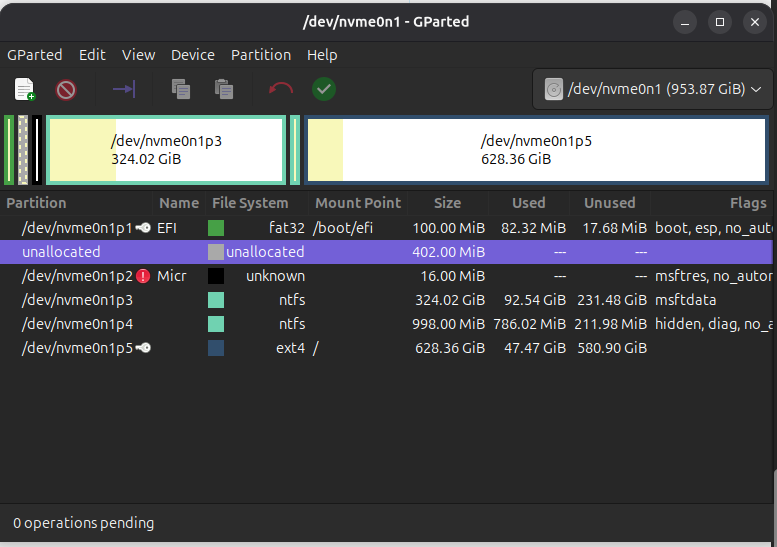
I restored from my backups and started again. This time I was able to move things around to make additional EFI space, while keeping everything else in working order as I went along. My partitions look like this now:
My question is how I can resize that EFI partition? My understanding is that GParted isn’t able to deal with small FAT32 partitions, so that doesn’t seem like it will work. I’ve read that Diskpart in the Windows Recovery environment is not capable of doing something like this either.
Given the issues I had before, I’d much prefer to resize the partition in place, but not sure if/how that is possible.
What would I want to do with the original EFI partition? Delete it after restoring to the newly created partition? Also, will Clonezille (rescuezilla in this case) set the partition flags properly? I’m assuming so, but figure worth asking.
After creating a 1GB FAT 32 partition on nvme0n1, the original ESP has been replaced, waiting for the Clonezilla restore data.
The flags should be restored also.
Ah, perhaps I was not clear enough in my earlier post.
Make a new 1 GB FAT 32 partition, which will eventually be nvme0n1p1
Restore original small nvme0n1p1 to larger partition.
Then, restore complete partitions nvme0n1p2, p3, p4 and p5
Well… I thought it had worked, but unfortunately I’m not quite there. Here is my current state:
Notice that the partition is 500M, but the unused is only 17M. The restore of the partition over top the new one did not resize the FAT32 formatting to match the new partition size. Any thoughts/suggestions on how I might be able to resize that file system?
The good news is that everything is otherwise working. So, it is slow forward progress.
Yes, I see, but, I don’t know why.
Can you open a terminal, enter the following command lsblk -e 7 -o name,size,type,fstype,fsuse%,fsavail,mountpoint
Please post the output
Indeed, excellent news. Your Clonezilla images are robust, keep them safe.
Anyway, a couple of things to try:-
Boot into a live session, open a terminal and check the file system on nvme0n1p1 sudo fsck /dev/nvme0n1p1
Using gparted, change the flags on the same partition to boot and esp
No progress… but no regression either I’m still able to boot both Ubuntu and Windows via Grub, but not seeing the additional file system storage availability.
I’ve read about fatresize. It sounds like it has issues with partitions under 512Mb. Do I go ahead and get this partition up to 512Mb and then try fatresize on it?
lsblk output:
NAME          SIZE TYPE FSTYPE FSUSE% FSAVAIL MOUNTPOINT
nvme0n1     953.9G disk
├─nvme0n1p1   502M part vfat      82%   17.7M /boot/efi
├─nvme0n1p2    16M part
├─nvme0n1p3   324G part ntfs
├─nvme0n1p4   998M part ntfs
└─nvme0n1p5 628.4G part ext4       6%  549.3G /
nvme1n1     931.5G disk
└─nvme1n1p1 585.9G part ext4      24%  408.4G /home
This is the first time I’ve heard of this utility and reading the info, it appears that FAT 32 partitions under 512MB are difficult to manipulate, as follows:-
You can’t resize FAT32 partition lesser than 512Mb because Windows(R) doesn’t work properly with small FAT32 file system. Use FAT16.
As your Clonezilla images(s) are solid, you have a couple of options:-
Try fatresize.
I’d be very interested to hear the result.
If you eventually have to restore again, you could allocate 1024MB to nvme0n1p1.
I did mention this in post 14, although I was completely unaware of the dilemma with small FAT 32 partitions.
The ubuntu installer (since, at least, 24.04) automatically creates a 1GB ESP now, so I suspect that this choice eliminates the problems you’ve described.
Well, I, for one, have certainly picked up an extra bit of knowledge from this topic.
I have always used gparted. And Windows since beginning of UEFI used 100MB for its ESP. And it was FAT32. Note sure I have changed an ESP that was created by Windows.
But you have to make sure ESP is unmounted to resize or run dosfsck. Not all tools show it is mounted.
In very beginning FAT16 was used by Ubuntu for ESP, but FAT16 was intended more for external (smaller) devices.
Typically Linux only uses a tiny amount of an ESP with grub. But if also using it to download a firmware update, or change to SystemD boot then larger ESP required. Since difficult to resize with partitions behind it and some limints on how far into a very large multiple TB drive the ESP can be located, often just better to have large ESP to start. If installing on a smaller drive and only grub, a small ESP will be fine.


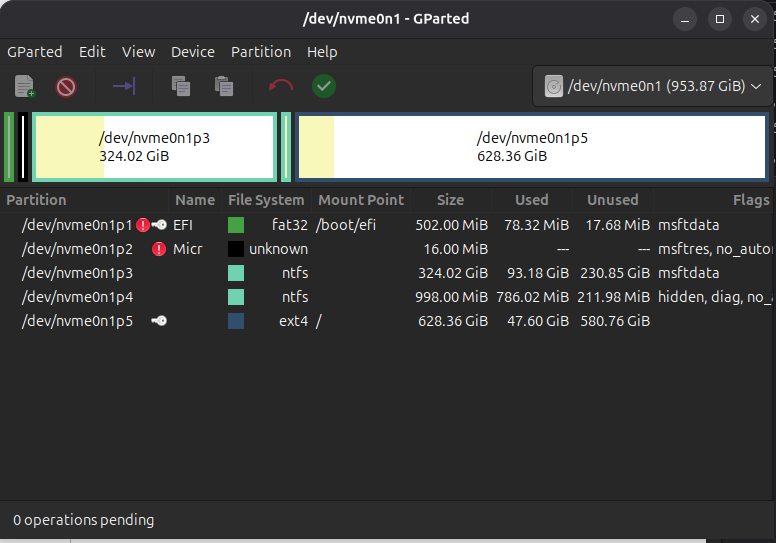
 I’m still able to boot both Ubuntu and Windows via Grub, but not seeing the additional file system storage availability.