Adding a Scanner

Ubuntu Support Template

Ubuntu Version:
22.04.4 LTS

Desktop Environment (if applicable):
GNOME (I think)

Problem Description:
Probably a simple process for the Linux experienced but not for me. I’d really appreciate your help and guidance.

I’m trying to add a brand new Canon LiDE 300 scanner to my desktop PC running Ubuntu 24.04.4 LTS. Lost count how many commands I’ve typed into the terminal but still no joy, hence this plea for help.

I’ve already tried to follow numerous guides (all quite different) which often use terminology that I don’t understand (including ‘official’ Ubuntu tutorials) and got nowhere. I appreciate that I need to download and install a scanner driver (or drivers), which I may or may not have managed (is “expand” the same as “unpack” the same as “unzip”?), but the terminology inevitably defeats me.

Screenshots or Error Messages:
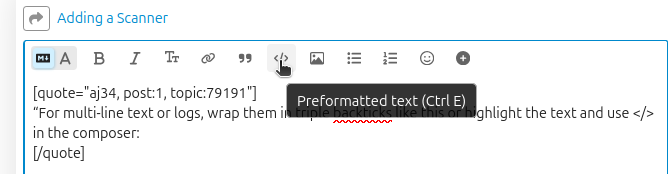
As an example of my ignorance, I don’t understand what this guidance means: “For multi-line text or logs, wrap them in triple backticks like this or highlight the text and use </> in the composer:

sudo dmesg | tail -20"

What I’ve Tried:
After many failed attempts, I started copying the terminal inputs and outputs, which I paste here in the hope it makes some sense:

****@home-pc:~$ /home/****/Downloads/scangearmp2-3.70-1-deb/packages/scangearmp2_3.70-1_i386.deb

bash: /home/****/Downloads/scangearmp2-3.70-1-deb/packages/scangearmp2_3.70-1_i386.deb: Permission denied

****@home-pc:~$ sudo add-apt-repository ppa:thierry-f/fork-michael-gruz

[sudo] password for ****:

PPA publishes dbgsym, you may need to include ‘main/debug’ component

Repository: 'Types: deb

URIs: Index of /thierry-f/fork-michael-gruz/ubuntu

Suites: noble

Components: main

Description:

Fork of the PPA : https://launchpad.net/~michael-gruz/+archive/ubuntu/canon-trunk

To make it available for new distributions.

Official drivers of Canon printers and multifunction devices, included versions 2.20 and newer (2.4, 2.5, 2.6, 2.7, 2.8, 2.9, 3.0, 3.1, 3.2, 3.3, 3.4, 3.5, 3.6, 3.7, 3.8)

Scangearmp2 driver add the 10/2019

=============================

TS5350i, G600, TS3500, TR4600, E4500, TR4700, XK500, TS8530, XK100, TS7530, TS7450i, GX6000, GX7000, TS5400, TS3400, E3400, TR7000, G2020, G3060, G2060, G3020, TS7430, XK90, TS8430, TR7600, TR8600, TR8630, TS6400, TS7400, G7000, G7080, GM4000, GM4080, G6000, G6080, TS5300, TS5380, TS6300, TS6380, TS7330, TS8300, TS8380, TS8330, XK60, TS6330, TS3300, E3300, TS8200, XK80, TS8230, TS8280, TS6200, TS6230, TS6280, TS9500, TR9530, TS9580, TR4500, E4200, LiDE 400, LiDE 300, G3010, G4010, TS9100, TS8100, TS6100, TR8500, TR7500, TS5100, TS3100, E3100, TS9180, TS8180, TS6180, TR8580, TS8130, TS6130, TR8530, TR7530, XK50, XK70, TS9000, TS8000, TS6000, TS5000, MG3000, E470, G4000, MB2100, MB2700, MB5100, MB5400, G3000, MG7700, MG6900, MG6800, MG5700, MG3600, MX450, MX490, E480, MG7500, MG6600, MG5600, MG2900, MB2000, MB2300, MB5000, MB5300, E460

Several other drivers were downloaded, then I tried…

****@home-pc:~$ sudo sane-find-scanner

[sudo] password for ****:

# sane-find-scanner will now attempt to detect your scanner. If the

# result is different from what you expected, first make sure your

# scanner is powered up and properly connected to your computer.

# No SCSI scanners found. If you expected something different, make sure that

# you have loaded a kernel SCSI driver for your SCSI adapter.

found possible USB scanner (vendor=0x04a9 [Canon], product=0x1913 [LiDE 300]) at libusb:001:005

# Your USB scanner was (probably) detected. It may or may not be supported by

# SANE. Try scanimage -L and read the backend’s manpage.

Not checking for parallel port scanners.

# Most Scanners connected to the parallel port or other proprietary ports

# can’t be detected by this program.

****@home-pc:~$ scanimage -L

device `pixma:04A91913_5C7306’ is a CANON CanoScan LiDE 300 multi-function peripheral

device `escl:http://localhost:60000’ is a Canon LiDE 300 (USB) platen scanner

device `airscan:e0:Canon LiDE 300 (USB)’ is a eSCL Canon LiDE 300 (USB) ip=127.0.0.1, ::1

****@home-pc:~$ /etc/sane.d/canon_dr.conf

bash: /etc/sane.d/canon_dr.conf: Permission denied

****@home-pc:~$

****@home-pc:~$ apt-get install sane sane-utils xsane

E: Could not open lock file /var/lib/dpkg/lock-frontend - open (13: Permission denied)

E: Unable to acquire the dpkg frontend lock (/var/lib/dpkg/lock-frontend), are you root?

****@home-pc:~$ Applications > Graphics > XSane

Applications: command not found

Any suggestions much appreciated
2 Likes

A complicated way to describe what you did, compounded by not using proper code fencing, but sort of understandable at the end of the day…

That said you don’t describe the actual problem… What programs are you trying to use the scanner with that don’t how? And how? Error messages, etc.

This assumes the drivers were correctly installed and about that let me tell you you did many unnecessary steps. If you downloaded and extracted the official drivers all you need to do is to double-click the .deb files that open the software installer where you just click install, that’s all.

1 Like

You do not tell us if you have tried opening the Document Scanner utility and letting that search for a USB scanner that is switched on.

I started using Ubuntu years ago because it was reported to be for the non-technical computer user.

2 Likes

It is, indeed, and so are most of the mainstream distros. The problem is the “baggage” from and unreasonable expectations those to be free drop-in Windows replacements.

With most Linux distributions – and especially with Ubuntu – it’s rarely necessary and most often not a good idea to download drivers or other software from anywhere else but the official places aka repositories the distribution offers.
Since the command ‘sane-find-scanners’ was found on your system and sees your scanner, the low-level infrastructure for scanning is installed. ‘sane’ stands for ‘Scanner Access Now Easy’ and the homepage of this project is http://sane-project.org. In the lists there you can see that a Canon LiDE 300 is indeed supported and uses the ‘sane-pixma’ backend.
As a matter of fact both ‘sane-find-scanner’ and ‘scanimage’ are part of the package sane-utils, so that is installed already.
The error you got when running ‘apt-get install sane sane-utils xsane’ means that you don’t have permission to install software. You can get that permission by putting ‘sudo’ in front of the command (‘sudo apt-get install …’).
The final error (‘Applications: command not found’) is down to you misunderstanding whatever (old) tutorial you where following. That’s not something you’re meant to type into the command line, it’s the place where you’d find ‘xsane’ in the menu after installing it. The problem is of course that the hierarchical menu the tutorial describes does not exist in Gnome anymore. Just open the Application overview and search for ‘XSane’. If the package ‘xsane’ is installed, the command to run it from the terminal is ‘xsane’ (all lower case; unless there’s a really good reason, commands are lower case).

1 Like

I was going to clean up your terminal output to be readable, but I don’t have time today to undo all the escaping, so I’ll leave it for you.

Next time, just use the Preformatted Text button for your terminal activity.
It’s much easier and more readable.

3 Likes

Please confirm that your printer is in fact USB-attached, and not using WiFi.


When dealing with hardware integration, it is always best to share the information about your hardware context. Could you please share the report from the following command:

inxi -CMNSGxxx

Also, may I suggest that you enter the following search string in Google and review, as a preliminary overview, the advice offered by that AI assistant, to help you understand the overall complexity and to guide you in formulating questions which might help you along.

Linux What are the necessary steps in order to make the "Canon LiDE 300" interract correctly with an Ubuntu desktop computer environment.

Canon seems to be a bit more “faciltating” regarding integrating their scanners, as opposed to their printers. If you are not able to successfully use either Document Scanner, or Xsane, then you may need to use the Canon-specific “ScanGear” related tools offered from their support site at the following:


Lastly, there is also Canon’s own Support Forum for printers specifically:

1 Like

I’ll suggest you check what you’re using, and correct your contradictory details.

You start saying you’re using 22.04.4 (2022-April release that isn’t fully updated), then later state 24.04.4 (2024-April release). Which is it?

That command failed as you omitted the sudo to elevate privileges; thus the error you got was expected, and commands was not executed (due to your error). Did you correct your mistake & re-try your command? as your following command listed as being tried wouldn’t be expected to work UNTIL you’d corrected your prior command.

1 Like

That’s because I can’t accurately or succinctly describe the problem. I buy a scanner that’s allegedly Linux compatible, I plug it into a USB port and power it up - that’s about the limit of my understanding - well, it was a few days ago. I’ve since learned a little more.

I’m well aware of that. When desperation kicks in, I try anything.

Apologies for presenting unintelligible text - I don’t understand the phrase, “proper code fencing”.

I hadn’t even noticed it when I viewed the apps. I’ve since seen it bundled as part of the Utilities - I didn’t know it was there but now realise I should have looked under Settings > Apps, then I would have seen it listed.

I think you’re partly correct. I also think that most folks using this forum underestimate their level of knowledge/expertise in this subject - not me, obviously. Throughout my academic studies, I’ve noticed that folks who have a far superior level of understanding, of any subject, compared to the level they are teaching don’t often make the best teachers. In this instance, there’s a massive gap between my knowledge level and most forum users. Please don’t take this as a slight - it’s just an honest observation. I really do appreciate your time and patience. I imagine it’s just as frustrating for you as it is for me.

Oops! It’s Ubuntu 24.04.4 LTS. And USB connected.

I made the move from Windows 10 a few years back due to frustration with that OS - some previous versions, W7 springs to mind, were fine but W10…I actually prefer Ubuntu to W10 and will continue to use it, even though it’s not so GUI-based as Windows. Perhaps in future a version of Linux may hit the spot for me. I live in hope.

Many thanks for your responses - truly appreciated. I understand a little more now (though, in honesty, I wish I didn’t have to) and the Canon scanner is working perfectly now so success! Sorry it’s been a frustrating experience for many of you.Thanks again.

1 Like

If you were able to solve your issue with advice offered in this discussion, it would be good for the Community as a whole to know which piece of that advice was the “pivot point” (a quick short summary of specifics) and also could you click on the “solution checkbox” for the post which offered that gem of advice which made it possible to resolve your issue.

That way others can home in on the “quick fix” instead of take a stroll through the entire discusion.

Thank you in advance.

:slight_smile:


Enter the triple backquote “`” on a line by itself, before and after, or, select the entire text of code then click on “</>” in the menu bar. (It would also be nice if you could edit your original post to incorporate that change of presentation.)

1 Like

It wasn’t that straighforward. I took information and guidance from several sources (incl. here) and managed to make some sense of it. I’ve just spent 40 mins trying to find how to edit my OP and how to logout. Managed to locate logout, eventually, so that’s enough for me for today. Will attempt to tidy my first post (if I can find how to edit) and do my best to summarize the eventual solution tomorrow.

For future readers drawn here by search engines:

When shopping for a scanner, the best plug-and-play compatibility with built-in Ubuntu tools is usually SANE-compatible devices.

Some manufacturers claim Linux compatibility, but --after purchase-- turn out to require installing some kind of driver or special non-Ubuntu software. Consider returning those devices to your vendor. Maintaining that software yourself can be a headache. There is no guarantee that the software will be compatible with a future release of Ubuntu.

  • Linux moved to plug-and-play compatibility many years ago. Manufacturers that claim “compatibility” but then require proprietary software are pulling a bait-and-switch on you.
5 Likes

Based on your sane-find-scanner output, your system clearly sees the hardware at libusb:001:005. The issue is likely a missing backend configuration for the SANE library to communicate with this specific Canon model.

Instead of manual terminal commands, please follow these precise steps to resolve the “Document Scanner” detection issue:

1. Install the PPA for Modern SANE Backends

Ubuntu 22.04’s default repositories might have an older version of SANE. Using the PPA from Rolf Bensch (the primary SANE maintainer) often fixes detection for LiDE models:

sudo add-apt-repository ppa:rolfbensch/sane-release
sudo apt update
sudo apt upgrade

2. Ensure sane-airscan is Installed

Modern Canon scanners often use the eSCL protocol. Installing sane-airscan allows Ubuntu to treat the USB scanner as a “driverless” device, which is much more stable: sudo apt install sane-airscan

3. Specific Fix for Canon LiDE 300 (The “Grant Access” Step)

Sometimes the user isn’t in the correct group to access the USB scanner interface. Run this to ensure your user has permissions: sudo usermod -a -G lp $USER

(Note: You must log out and log back in for this change to take effect).

4. Final Verification

Open Document Scanner (Simple Scan). If it still says “No scanners found”, run: airscan-discover

If the scanner appears in that list, Simple Scan will now recognize it automatically.

1 Like

I logged in today with the intention of tidying my original post and providing a short summary of the eventual fix but I tried so many different things to get this sorted that I’ve no idea which things contributed to the fix and which didn’t, sorry. And I still can’t see how to edit my published post (now irrelevant anyway)!

Like everybody else, I have time constraints so I shall not return to this thread. Thanks again for all your help.