It looks like I have a more recent BIOS version than you list. Can that be added? Thank you!
Weird, the bios should not really make a difference as long as some of the other IDs match so that suggests we have another bug somewhere.
EDIT: could you try adding a ‘debug’ to the kernel command line and check what the exact error is? I’d also be interested if it boots with ‘stubble.dtb_override=false’ on the kernel command line.
Well, I added debug to the command line and … now it boots into 6.16. So strange. Working now! I am wondering if what REALLY happened had to do with upgrading to 6.16, then successfully booting into 6.14 and THAT resetting or assigning something that the 6.16 install needed.
Yes that‘s true. Didn‘t come around to make the ISO work on mine - yet. Only way now is the images I posted. And even that is un-upgradeable now as I found out the other day.
So it is only the hard way for now - unpack the ISO, add the ideapad dtb in the /boot, repack the ISO. This sounds mad but its easier than changing the squashfs.
On boot, edit the cmdline of the boot entry by adding a new line at the end:
devicetree = /boot/name of the dtb
Exit with F10. Should boot.
I tried just now after adding the ideapad dtbs. Yes it works, you can boot, but install would fail (no efivars). Working on that, should be fixable with a modified dtb.
Thanks. The boot and installation was successful but when I unplug the usb and reboot to Ubuntu and put back the command line fir the dtb. It tells me that the file is not found. With it I can’t boot Ubuntu and it seems the file isn’t copied when Ubuntu is installed. How could I solve this problem (like copy the file somewhere after the instalation?)
Easiest would be to copy over the file, but wiring it up might be tricky. You can put it into /boot, though (like it is on the ISO) then this command line hack would also work without change. To get it properly installed (depending on some if’s) you could use the kernel packages I compiled - 6.16-el2-jg-4 would be sort of the newest. Download the whole folder, place them in a separate folder, and execute sudo dpkg -i *.deb in it. Not sure if the right dtb will be installed, please watch the output. It should be in /boot/dtbs/6.16.0-el2-jg-4-qcom-x1e/qcom/ and symlinked in /boot. This should fix up the boot config to boot with the right dtb and actually all required drivers, also enabling camera.
Thanks for setting this up. I tried plucky-desktop-arm64+x1e-20250827_Ideapad5…iso on my X1P42100 Asus Vivobook S15.
The good news is that after appending “devicetree /x1p42100-asus-vivobook-s15.dtb” to the grub boot entry, it booted OK and the install GUI came up and I could select various install options, including connecting to my wifi.
The bad news is that after the “Install recommended proprietary sotware?” screen, it popped up a “System Program Problem Detected”. I tried as many variations as possible in the install options and multiple reboots, but all similarly failed. I tried “send this to developers” but it came up with a "<urlopen error [Errno -3] Temporary failure in name resolution>. I have a copy of the /var/crash files and screenshots of the “Report Problem” gui if anyone is interested.
I’ve tried to find the difference in the output of journalctl -b -o cat between 6.16.3 and 6.16.4 but found nothing obvious. Also browsed the changelogs of both 6.16 and 6.17 kernel releases. There are related changes but nothing major to my eyes.
Is it just me? In that case I’ll have to review my kernel config and selected modules.
I haven’t heard of any panics during boot before. Depending on when the issues occur it could still be something like missing modules/firmware in you initrd I suppose?
Another tree worth trying would be https://git.codelinaro.org/linaro/arm64-laptops/linux/
not on the iso. I installed ubuntu on the partition but I still need the command line to boot. The problem is that I need to type it in grub each time before I boot ubuntu
Then the solution is /etc/default/grub, you can add it to GRUB_CMDLINE_LINUX and then run update-grub. That should add it to all entries in /boot/grub/grub.cfg.
EDIT: That is assuming what you want to add is actually commandline. If you want it to add the devicetree command to every boot entry you can place it in /boot/dtb-$(uname -r) and update-grub should find it and add it to the kernel entry. The scripts that does this can be found in /etc/grub.d/10_linux.
thanks it worked. I did the second method you told me. Well now ubuntu works well but can I update ? Does updating break anything ?
On kernel updates you might have to add the DTB again. The upgrade should always keep one working kernel around so if this happens and you miss it you can still select the working one in the grub menu and fix the new one!
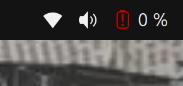
Everything is working fine, I performed the update without any problems. Ubuntu is working well, except for one thing: the battery status. I don’t know how to solve this problem or if it can be solved.