Problems with upgrade from Ubuntu Studio 24.04 LTS to 26.04 LTS

Ubuntu Version

Ubuntu 26.04 LTS Flavors

Desktop Environment (if applicable)

KDE Plasma

Problem Description

To upgrade I stupidly just clicked on the upgrade option offered in the notification in the GUI.
Since then, I have had no end of problems.
First the typical ones, which I have meanwhile resolved:

  1. No GUI
  2. No Network

My SDDM greeter is still hosed, but that’s a minor problem.
On the positive side, the update preserved the PC’s domain membership and pam_mount configuration and I seem to have the same apps installed as before, even Firefox, which I had installed from the Mozilla repository, in order to have the latest version and because of file access problems with the snap version. In order to set up the Mozilla repository, I installed Synaptics. I can run it, but when I start it displays an authentication prompt which won’t accept my root password.

The major issue is that the system still appears to be in an inconsistent state.

When I run Discover from the GUI it is very slow. At first it told me I have 108 updates waiting.
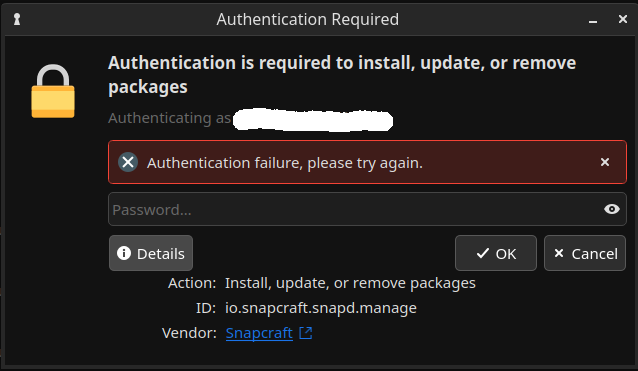
However, Discover wouldn’t accept my root password (see authentication popup above).
In console (logged in with the same user: a domain administrator) ‘sudo apt update’ yielded ‘0 packages can be upgraded’.

Going back to the GUI, Discover then showed only 3 packages pending, but it still wouldn’t accept my root password. Nonetheless, it seems to have worked on the updates. It then installed one of the three then called for a restart and crashed.

After restarting, I logged into the root account (with the same password that had failed in the authentication prompts), where I was able to update the remaining two packages in Discover.
IAC, I am still getting occasional notifications that ‘Ubuntu 26.04 has experienced an internal error’.
When I try to ‘Send an error report to help fix this problem’, I get a root password prompt like the one in Discover, which again fails to accept my root password, even though the dialog confirms the identity it is authenticating for and I am already logged in to that account.

Here are my questions:

  1. How can I find out (and fix) whatever is causing the “internal errors”.
  2. Synaptics is now deprecated. I was able to enable ‘packages.mozilla.org/apt’ in Discover despite failing the authorization prompt, but Discover still fails to show my installed Firefox version. How should I deal with this?
  3. I have learned from this that I need to (a) work through a “pre-flight checklist” before future upgrades and (b) perform the upgrade from console instead of GUI. However, I am wondering whether I would be better served by leaving the LTS path, so that future upgrades would be more incremental and less massive.

Any advice on these issues would be most welcome!

P.S. Meanwhile it appears that Discover does in fact perform the pending updates, even after showing the dialog which rejects my root password.
After showing 7 pending updates, Discover installed one of them and then hung, showing ‘Fetching updates…’
After closing and reopening Discover, it showed the remaining pending 6 updates. When I clicked ‘Update all’ it displayed the usual authentication prompt and failure notice, but went on to install all 6 updates. After this, ‘Fetching updates…’ succeeded without an anolmalies.

Relevant System Information

KDE Plasma 6.6.6
4x Intel Core i5-2500 @ 3.3 GHz
32 GB RAM
Mesa Intel HD Graphics 2000
Stay on the LTS path. Interim releases are supported for 9 months, so you’d run a release upgrade like this one every 6 to 9 months instead of every two years.

For the internal errors, list the crash reports by date:

ls -lt /var/crash

Each .crash file is named after the program that crashed, for example _usr_bin_plasmashell.1000.crash. Open the newest one with ubuntu-bug /var/crash/<file>.crash to see the details and report it.

Delete the reports from before the upgrade with sudo rm /var/crash/*.crash. If the notification comes back, the new file in /var/crash names the program that is still crashing.

Drafted with AI.

Thanks for the tips. After a few rounds of update/upgrade, the crashes seem to have stopped.
What persists is the error message from the popups that ask for my root password, for example when updating packages in Discover. Despite the failure message, Discover then goes on to apply the updates.

@rsbrux if it is still needed, try to run this:

sudo dpkg --configure -a
sudo apt --fix-broken install
sudo apt update
sudo apt full-upgrade

That is rather confusing. By default the user root is disabled in Ubuntu. Attach a screenshot of the dialogue where this password is requested.

3 Likes

Already done a few times, thanks!

1 Like

Sorry, I’m just a dilettante when it comes to Linux. By root, I mean the local account with admin privileges that was created during my initial full installation. That is the account for which the authorization popup requests the password. This password always worked without problems in Ubuntu Studio 24.04 LTS. It seems to still work in 26.04, even though the popup says that it’s wrong. I don’t have any updates pending now and don’t know how else to provoke the popup, but I’ll take a screenshot at the next opportunity.

OK

Which makes it even more important to see this popup and what it says.

1 Like

Meanwhile I have had a few more crashes. The smallest of the crashfiles is already 74k, so too long to post here. I took a look at it but don’t really know what I’m looking at. Here are the last few lines, in case that helps:
‘SourcePackage: mypaint
Traceback:
Traceback (most recent call last):
File “/usr/bin/mypaint”, line 309, in
main.main(
~~~~~~~~~^
datapath,
^^^^^^^^^
…<4 lines>…
debug=debug,
^^^^^^^^^^^^
)
^
File “/usr/lib/mypaint/gui/main.py”, line 133, in main
lib.glib.init_user_dir_caches()
~~~~~~~~~~~~~~~~~~~~~~~~~~~~~^^
File “/usr/lib/mypaint/lib/glib.py”, line 193, in init_user_dir_caches
k.value_name,
^^^^^^^^^^^^
AttributeError: ‘UserDirectory’ object has no attribute ‘value_name’
UserGroups: audio cdrom kvm libvirt video
_HooksRun: no’
I tried using upticks for the above text since I am missing the <|> tool in the toolbar, but it doesn’t seem to work.

I have meanwhile fixed the greeter.

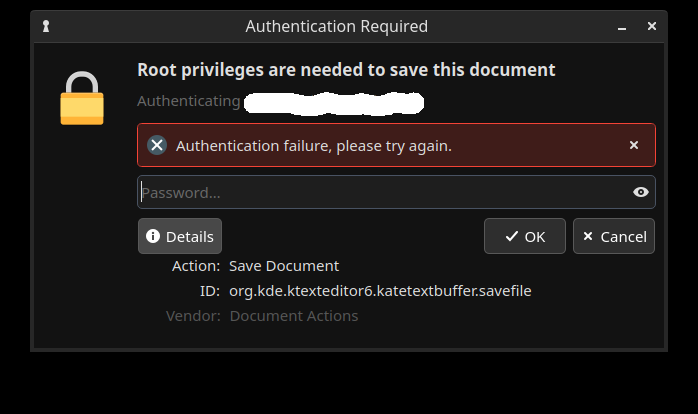
I was able to provoke the authentication prompt by writing a file to a directory where I didn’t have write privileges. The prompt and error message appeared three times, but the file was successfully saved on two of those occasions. In fact, the same file was saved successfully once and not saved another time.

Since I am encountering crashes again, I retried @dmxplx 's suggestion, but it found nothing to install.

Thanks for all your help!

2 Likes

Installed available updates today in Discover with similar results. The authentication dialog gave an error message, but most of the updates installed anyway.
Here is the dialog:

The process threw the following error messages:

Package not found:

Package id ‘bluez-cups;5.85-4ubuntu0.3;amd64;ubuntu-resolute-security-main’ is not available as an update candidate

and

snap not found

The latter seems to apply to the one package (Freeshow snap) that wasn’t updated.
There are no new files in /var/crash.

As can be seen quite clearly it is about snaps and yes, this action by default requires authentication as administrator:

bor@resolute:~$ pkaction -v -a io.snapcraft.snapd.manage
io.snapcraft.snapd.manage:
  description:       Install, update, or remove packages
  message:           Authentication is required to install, update, or remove packages
  vendor:            Snapcraft
  vendor_url:        http://snapcraft.io
  icon:              
  implicit any:      auth_admin
  implicit inactive: auth_admin
  implicit active:   auth_admin_keep

bor@resolute:~$ 

You get exactly the same prompt if you run snap refresh.

Discover integrates multiple package delivery formats (standard packages, flatpaks, snaps, some more). In your case Discover could not update snaps, but proceeded to update the standard Debian packages.

Ubuntu already overrides default polkit policy allowing the administrator user to perform quite a lot of privileged actions without explicit authentication. Maybe snap management should be included. See as example /usr/share/polkit-1/rules.d/com.ubuntu.desktop.rules.

1 Like

Please verify if these packages are installed.

apt-cache show plasma-discover
Package: plasma-discover
Priority: optional
Section: universe/kde
Installed-Size: 2292
Maintainer: Kubuntu Developers kubuntu-devel@lists.ubuntu.com
Architecture: amd64
Version: 6.6.6-0ubuntu0.1
Recommends: plasma-discover-backend-fwupd, plasma-discover-backend-snap, plasma-discover-notifier, software-properties-qt
Suggests: kde-config-updates, plasma-discover-backend-flatpak

Hint: Before an upgrade I create an usb-stick for live-install, make a backup, read release notes, have /home on a separate partition and make sure the system is fully up to date. Using different software applications and not standard package sources may also cause issues. There is a reason why packages are pending when not ready for a stable release and will show up when they can be upgraded.

@and-sam
Seems to be OK:

Package: plasma-discover
Priority: optional
Section: universe/kde
Installed-Size: 2291
Maintainer: Kubuntu Developers <kubuntu-devel@lists.ubuntu.com>
Architecture: amd64
Version: 6.6.4-0ubuntu1

I did in fact create a USB stick in case of a complete meltdown, but didn’t realize it could be used for an upgrade as opposed to a fresh installation. I have backups,but no full backups, just whatt I thought might be hard to reconstruct. Home is also on a separate partition and my packages were up to date before upgrading. I did read the release notes, but failed to notice that there are more extensive upgrade guides that I would have benefited from reading before going at it.
Thanks for the tips!

1 Like

@avb66
Thanks for explaining how Discover can update some packages without authentication. However, the deeper issue is that the authentication failure notice appears to be bogus. Please see my previous posts, particularly the one from Oct. 6 where I describe how kate was able to write to a directory for which elevated privileges were needed, despite the display of the authentication failure message.

Please, read again what I wrote. It is not bogus. There are multiple software delivery methods. Some of them need explicit authentication, others work without explicit authentication.

There are multiple posts from Oct. 6. And Discourse makes it extremely cumbersome to find out the exact date of posts. If you want to refer to some previous content, please, add the link to it. I do not see the word “kate” anywhere in this thread.

I didn’t call what you wrote bogus. I was referring to the “Authentication failure” notice in the dialog I posted here (the link you asked for).
The password I entered works fine in console, and even though I got an “Authentication failure” notice when attempting to save a file from kate, the file was still written.

What I think @avb66 is trying to clarify is where (and how), other than Discovery, you think the same password works. Namely, you said:

And later point to a post that has nothing to do with it and indeed never mentions kate. So, where and how exactly the password that “fails” in the pop-up is accepted? In what operations does it happen?

Please explain the steps you take to write to a directory where you don’t have privileges and the details what you are trying to achieve.

Are you doing this via GUI, in a terminal with sudo or ksudo and hopefully not in a root shell.

At least, don’t do it for any system folders like /etc, /var, /usr and any other system folders if you don’t want to experience issues, unless you know exactly what you are doing. There is a reason why privileges exist. When installing over an existing ubuntu and not using the same user name also leads to lost privileges.

Thanks for responding. To be specific, the password works for su and sudo in console.
It also allowed kate (which I invoked from an unprivileged account) to write a file to
/etc/systemd/user
even though I got the “Authentication failure” message shown in this post.
I didn’t mention kate specifically in that post because the problem appears to be a general failure of the “Authentication Required” dialog to correctly acknowledge valid input.

That being the case you can and should make sure your system is fully up-to-date. Try running sudo apt update && sudo apt full-upgrade . Lookout for and note down any errors. Troubleshoot from there.