Ubuntu Core is pretty successful in the commercial portfolio of Canonical.
It runs in plenty different setups from medical devices over industrial controllers, robotics, automotive, digital signage, top of the rack switches and many many more.
While commercial success is indeed a great thing, it always bothered me that people do not really seem to see the benefit of having an extremely secure, tinker proof, self healing and self managing system for their home appliances.
Be it a NAS server, your WLAN router and firewall, a home automation machine that controls your lights, heating and window shades, a secure home surveillance system or even more exotically a smart greenhouse or your little toy robot.
To build any custom Ubuntu Core image for home use you only need three things, an idea, a model assertion and a gadget snap … and the Ubuntu Image tool to roll an image from these.
While I can not help with generating your ideas (once you have them I’ll happily help though), I have been thinking for a while about how to make the other two bits easier.
Especially model assertions are not easy to understand on first sight, but they are the heart of an Ubuntu Core image, they define who owns it (and gets access), what goes into the image, what security levels the image has and so on. All these things can be controlled in a model but understanding the single options and settings can be overwhelming …
So I thought … how about we try to visualize them in a GUI instead to make this bit easier ?
And if we have a GUI, why not make it a wizard that walks you through the creation process and gives you clear hints which option is for what …
So I started coding … and out came:
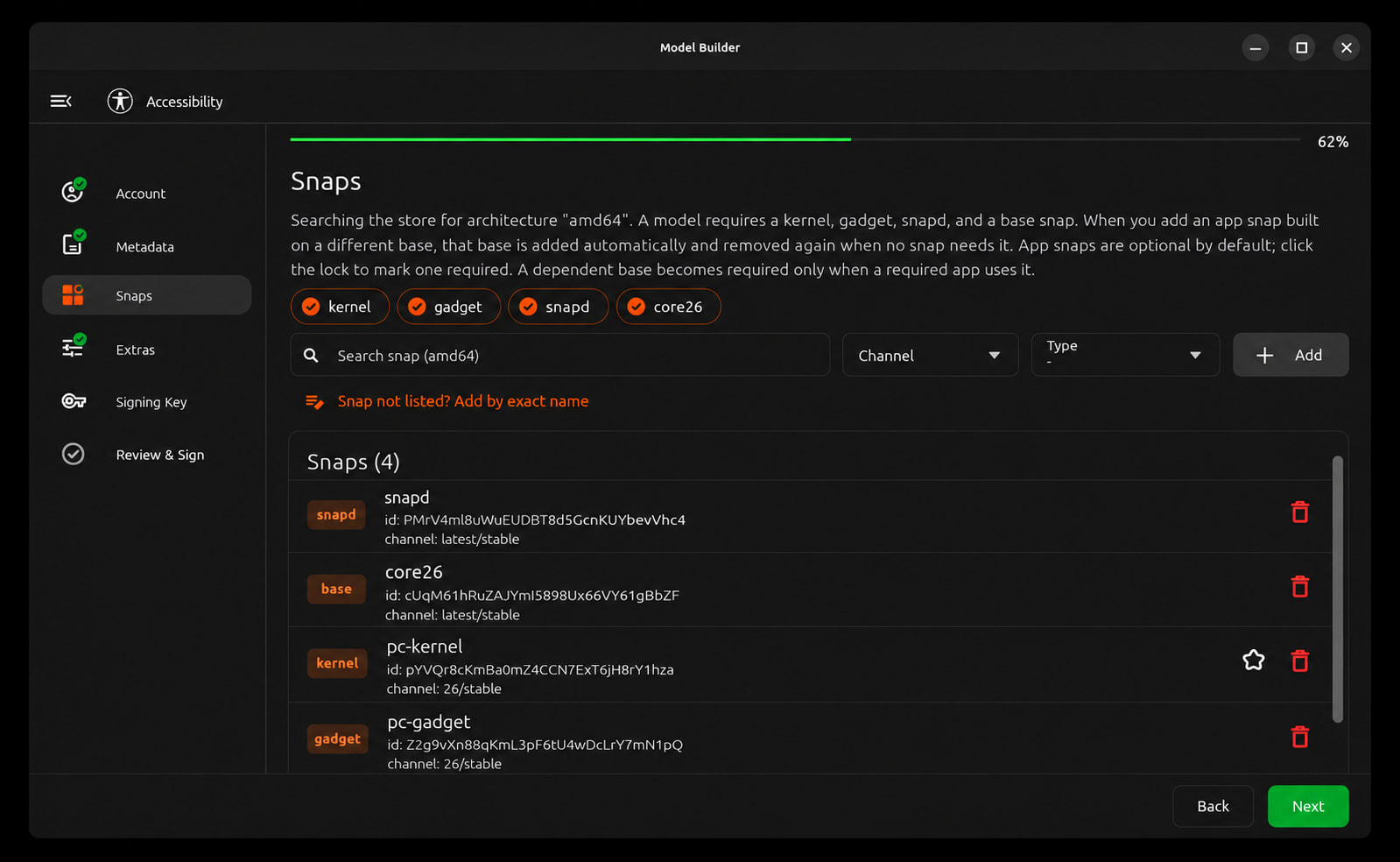
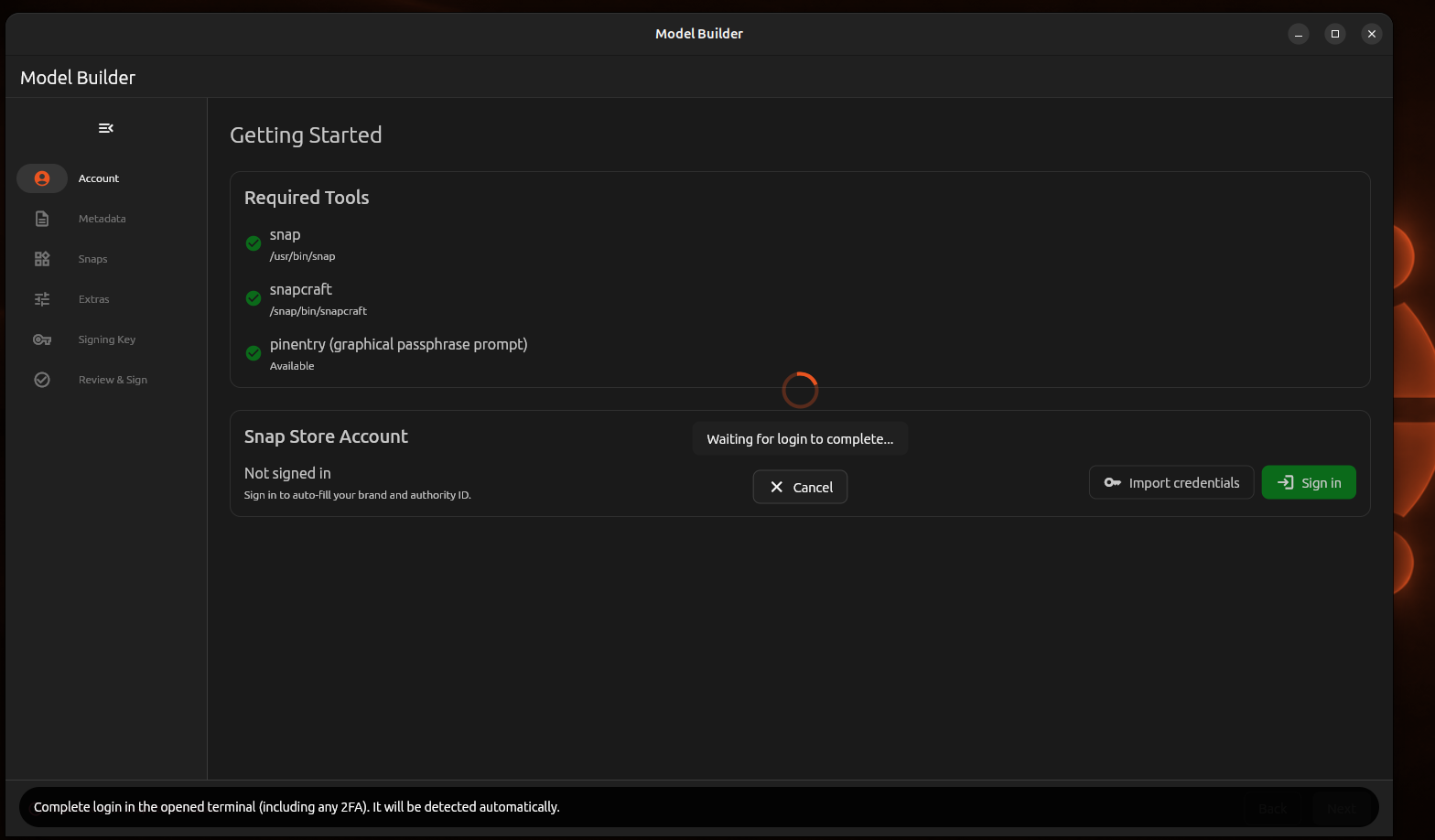
The Model Builder for Ubuntu core:
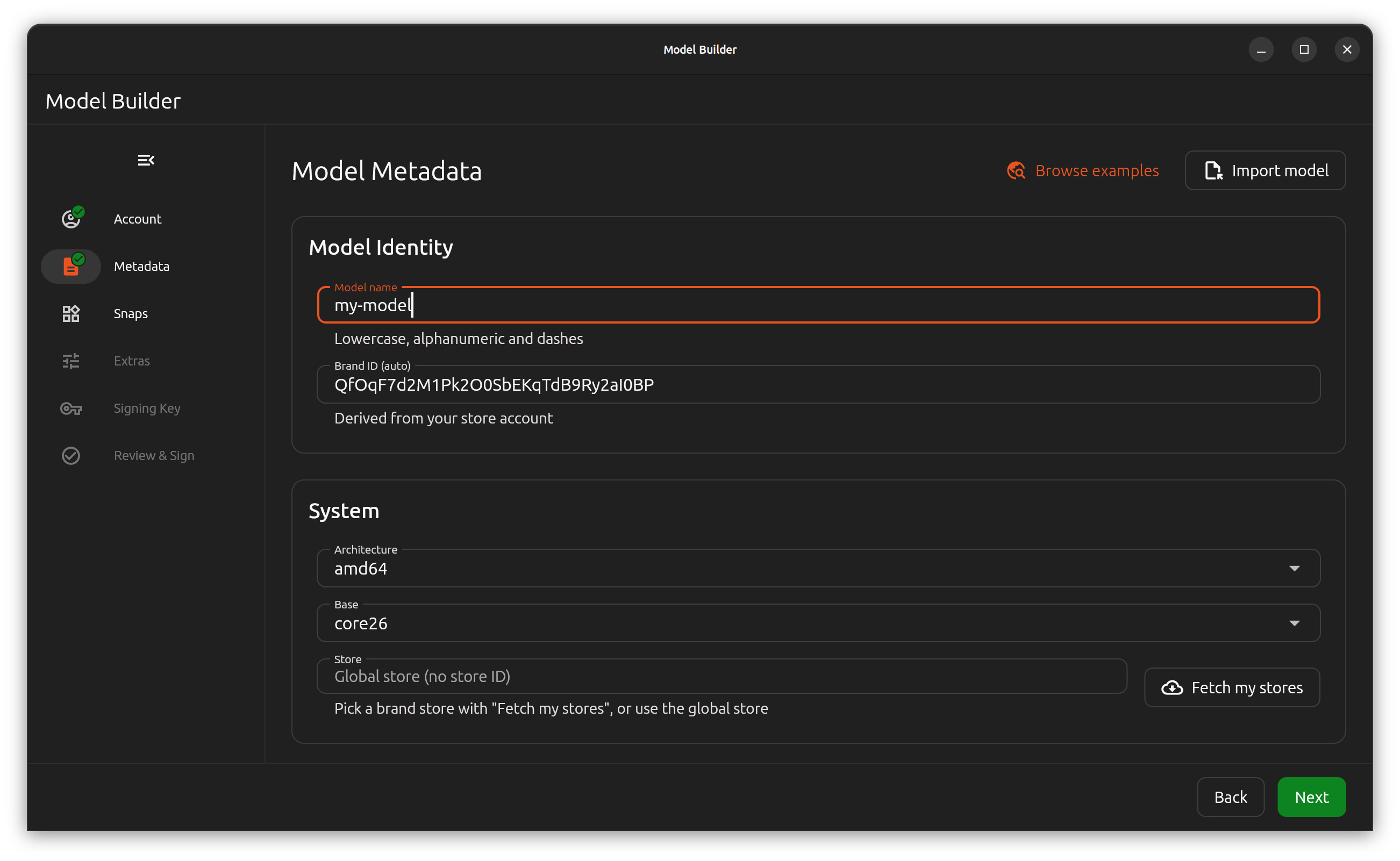
It allows you to create a personal or commercial model, picking the security level for the image (i.e. do you allow side-loading, do you want full disk encryption enabled for the image, do you allow user accounts on the device and if so, who is allowed to create them etc etc)
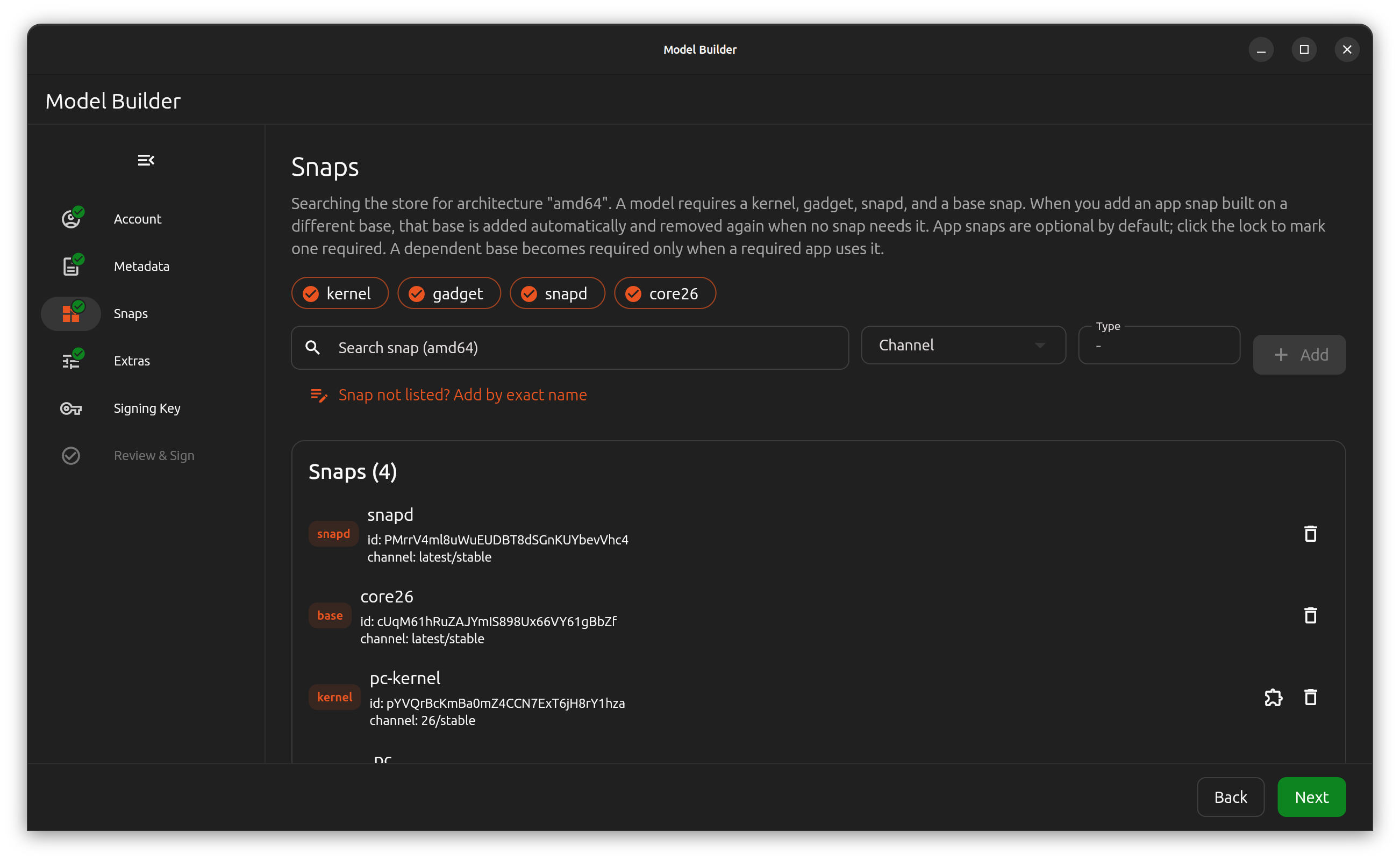
The selection of snaps happens through an interactive store search so you do not need to leave the app to add anything to the model or look up anything on the web.
If you have an Nvidia card in your box (i.e. because you want to build a local LLM machine to help you with vibe coding) you can just pick the correct kernel components (i.e. nvidia drivers) and the resulting image will have them. You can decide which snaps are removable from the image and which ones must always stay installed to not break its functionality.
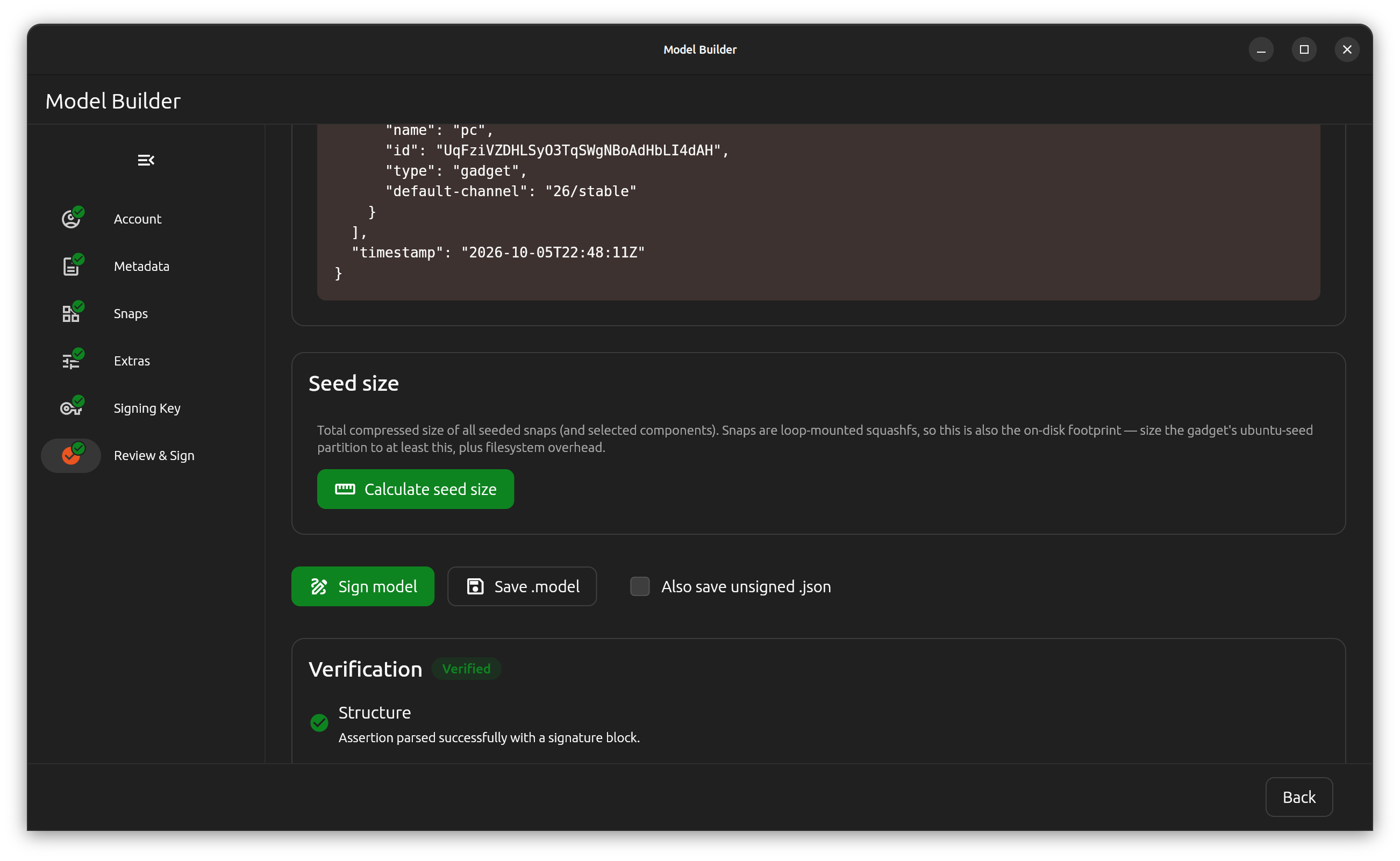
In the end you sign your model and store it on disk to then use it with the ubuntu-image tool …
This is only the first one of a collection of apps that I am working on for Ubuntu Core management. The model builder can be found in the snap store, the source lives on github at:
In the next post of this series I will show the gadget-editor that allows you to set defaults, partition sizes and initial snap connections of the image, so stay tuned (or even take a peek already, it is already available in the snap store)
I will also start holding regular public office hours for Ubuntu core and will invite people from other Canonical teams or the community to discuss specific topics so if you have specific ideas or questions around it, feel free to chime in there, a schedule will be put up soon.
Stay tuned for more